Tradovate Webhook Trading Generally Available on CrossTrade
Tradovate webhook routing is now generally available on CrossTrade, with cloud execution, native brackets, and no NT8 desktop or VPS required.
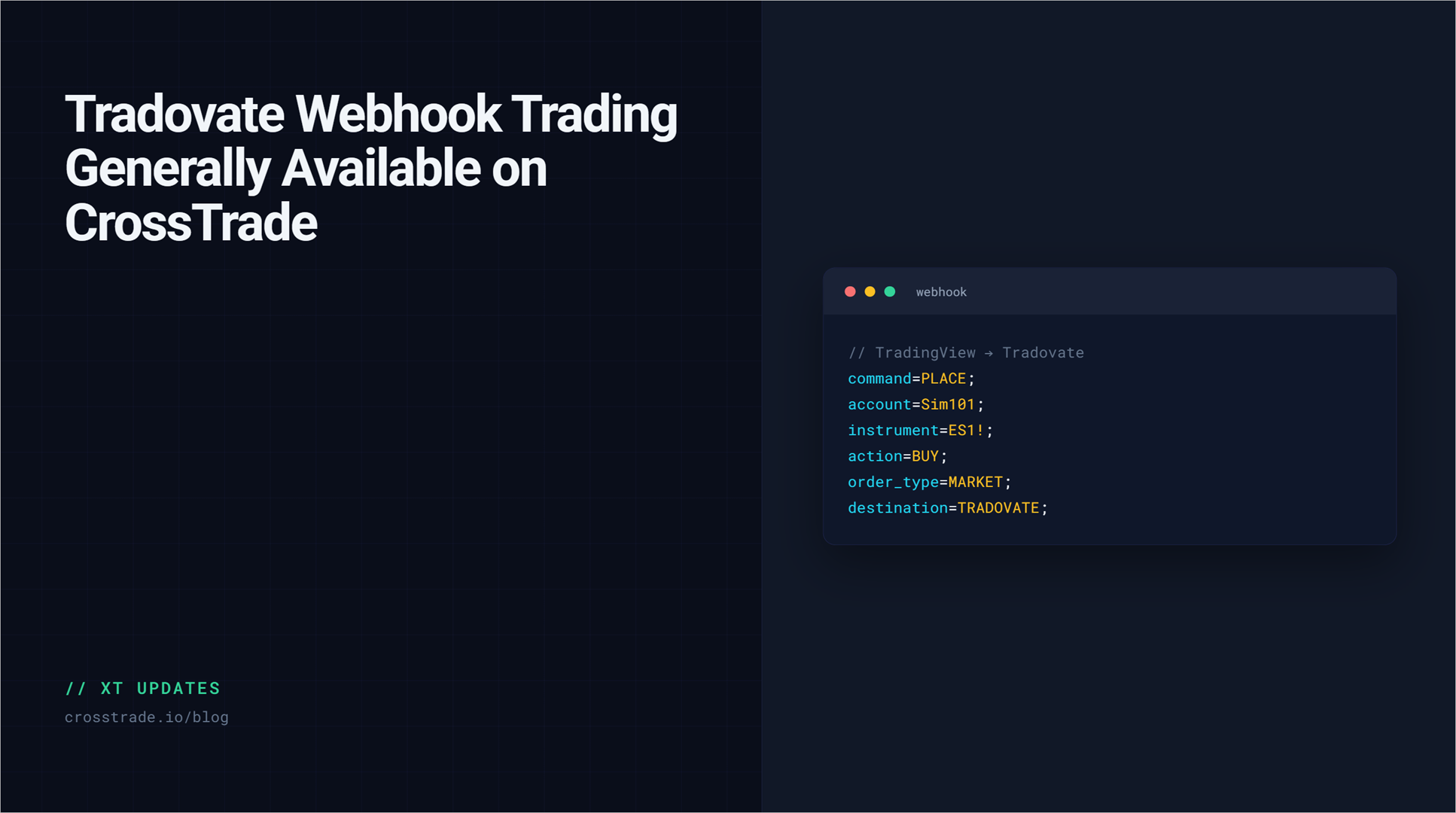
Tradovate webhook trading is now generally available on CrossTrade. TradingView alerts can route directly to a linked Tradovate account through CrossTrade's cloud, without keeping NinjaTrader 8, a Windows computer, or a VPS online.
The original release moved the core Tradovate webhook route out of beta. Current capabilities include native order types, broker-hosted brackets and supported CrossTrade-managed ATM behavior. This article's availability and streaming notes were updated October 10, 2026; the original publication date remains the launch record.
If you already use CrossTrade with NinjaTrader 8, nothing changes automatically. Alerts still default to NT8 unless you explicitly add destination=tradovate;.
What generally available means
General availability applies to the direct cloud route and the native Tradovate order capabilities behind it. CrossTrade validates the alert, resolves the linked account and contract, applies account controls, and sends the request to Tradovate's cloud API.
- No desktop dependency: The core route does not pass through NinjaTrader 8 or the CrossTrade Add-On.
- No VPS requirement: TradingView, CrossTrade, and Tradovate are all cloud services for this workflow.
- Demo and live linking: Tradovate Demo and Live are separate environments. Link the environment that owns the account you intend to use.
- Multi-account support: You can target linked account names directly and use supported CrossTrade copier or multi-account workflows.
- Visible routing: Alert History identifies Tradovate-routed webhook requests with a destination badge.
The direct route is available on CrossTrade Standard, Pro, and Elite plans. API and MCP access have different plan requirements, so do not assume that webhook availability also grants every developer surface.
Native orders and managed ATM behavior
CrossTrade-managed target-fill breakeven and profit-triggered trailing are generally available. They sit on top of Tradovate-hosted orders and have their own runtime requirements:
- Target-fill breakeven: CrossTrade watches a selected target fill and moves the surviving stop to breakeven or a configured offset.
- Profit-triggered trail activation: CrossTrade keeps a fixed stop active until its live pricing reaches the configured trigger, then keeps tightening that same ordinary stop as the trade makes new favorable prices. No conversion to a native trailing order occurs.
Native brackets, multibrackets and continuous trailing are generally available, as are CrossTrade-managed target-fill breakeven and profit-triggered trailing. The latter require CrossTrade's service to evaluate and adjust the stops. Tradovate copier Order mode remains beta. See the ATM reference for current limits.
How the route works
- TradingView detects your condition. Your alert sends its message to your permanent CrossTrade webhook URL.
- CrossTrade authenticates and parses the message. The secret key, command, destination, account, instrument, and order fields are checked.
- CrossTrade applies controls. Account Manager locks, trade windows, position gates, Strategy Sync, and configured copier behavior are evaluated where applicable.
- CrossTrade sends the request to Tradovate. The linked identity and concrete futures contract are resolved before broker submission.
- You verify the result. Review Alert History and the order inside Tradovate. Do not treat the first success response as proof of a fill.
CrossTrade automatically marks the Tradovate orders it sends as automated. You do not add an automated field to the alert.
Send one controlled Demo alert
Start with a plain market order on an obvious simulation account. Replace the placeholders with values from your own CrossTrade account. Never put a real secret or account identifier in a public script, screenshot, or shared template.
key=your-secret-key;
command=place;
account=DemoAccount;
instrument=ES1!;
action=buy;
qty=1;
order_type=market;
tif=day;
destination=tradovate;
The final line selects the direct Tradovate route:
destination=tradovate;If that line is missing, CrossTrade preserves its established behavior and sends the alert to the NinjaTrader 8 destination. That default prevents existing alerts from changing execution paths after this release.
Before you fire the alert
- Open My Account in CrossTrade and select the Brokers tab.
- Use Link Demo for a Tradovate Demo identity or Link Live for a personal live brokerage identity.
- Confirm the account name shown after authorization.
- Create the TradingView alert with your permanent CrossTrade webhook URL.
- Send one alert, then stop and inspect the result before sending another.
Many Tradovate-based evaluation and funded accounts live in Tradovate's Demo environment even after an evaluation is passed. Technical connectivity is not permission to automate. Review the current rules of your broker or prop firm before connecting or trading an account.
What you can route today
The direct Tradovate destination covers the core lifecycle of a futures order:
- Place market, limit, stop, stop-limit, MIT, trailing-stop, and trailing-stop-limit orders.
- Attach absolute-price take-profit and stop-loss protection as a native broker-side bracket.
- Create native scale-out targets and fixed stops with inline or saved Tradovate ATM configurations.
- Cancel one order, an account's working orders, or every working order across linked accounts.
- Change quantity or applicable prices on a working order.
- Close a position fully or partially, flatten, or reverse.
- Use Tradovate-specific features such as IOC, FOK, GTD, iceberg display quantity, and broker-scheduled cancellation where documented.
Not every NinjaTrader concept has a Tradovate equivalent. NT8 desktop ATM ownership, Playbooks, closestrategy, strategy-tag locks, and Opposing Position Protection are examples of destination-specific capabilities. CrossTrade rejects unsupported commands instead of reporting a false success.
How to read Alert History correctly
Every webhook attempt is recorded in Alert History. Tradovate rows carry a blue destination badge, and multi-account sends create independent rows for each account.
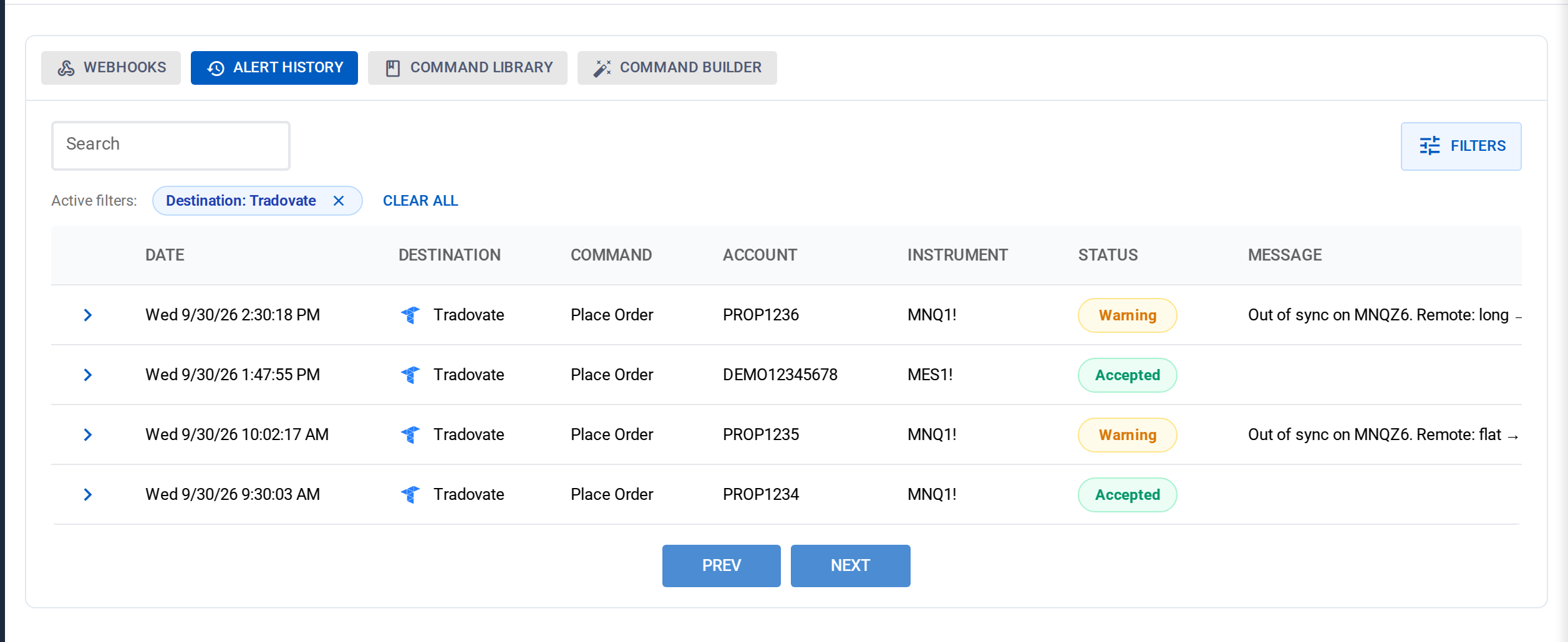
Tradovate alerts in Alert History
A green Tradovate row means the broker accepted the request. It does not necessarily mean the order filled, is still resting, or passed every later broker risk check. Tradovate can accept a request and reject the order shortly afterward. For ordinary placements, CrossTrade performs a follow-up check and can move the row to a yellow warning with the broker's reason.
When a result is unclear:
- Do not keep resending the same alert.
- Compare the CrossTrade row with the order inside Tradovate.
- Save the order ID and rejection text.
- Use the built-in AI chat to analyze and troubleshoot your alerts.
Webhooks, API, and MCP are different surfaces
This announcement is about webhook routing. CrossTrade also offers a REST API and hosted MCP tools for linked Tradovate accounts. Those direct calls have their own authentication, plan, and permission requirements, and they do not create webhook Alert History rows.
CrossTrade's WebSocket API now supports linked Tradovate accounts server-side. Use origin=tradovate for account/order/fill events and P&L, and Tv_* RPC for supported requests. Tradovate market data is not streamed. REST and WebSocket use a CrossTrade Bearer token; MCP uses its separate OAuth flow.
No VPS does not mean no risk
Removing a desktop machine from the route removes one operational dependency. It does not remove trading risk, broker outages, malformed alerts, expired authorization, rate limits, or account restrictions.
Test the full workflow in Demo. Verify the destination, account, contract, side, quantity, order type, and protection. Keep an independent way to view and manage the account. You remain responsible for every alert and order sent through your CrossTrade account.
Where to start
Visit Automate Tradovate from TradingView, link a Demo identity, and work through the first automated Tradovate trade guide. Start with one small, controlled alert and expand only after the route behaves exactly as expected.

CrossTrade is execution and automation software, not a broker, financial adviser, or trading strategy. Futures trading involves substantial risk. Review the CrossTrade Trading Disclaimer before using live funds.