
How to Send Take Profit and Stop Loss Orders to Tradovate From a TradingView Alert
Brackets, scale-outs, native trailing stops, MIT and GTD: how to put exits on a Tradovate order from a TradingView alert, and which parts keep working with your computer off.

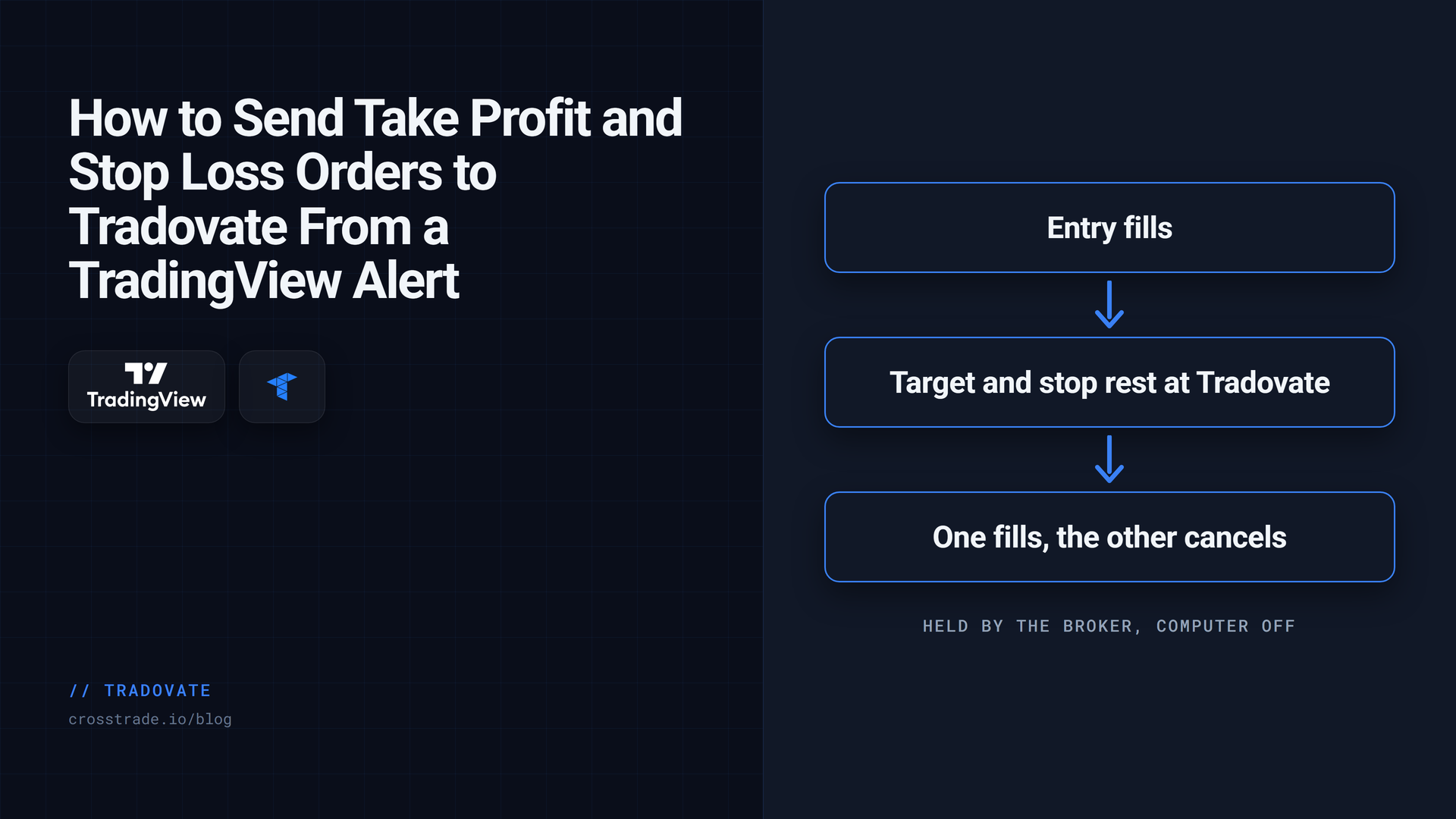
Getting into a trade from a TradingView alert is one line. Getting out well is the actual work: a stop that exists the moment you are filled, a target that cancels the stop when it hits, a runner that trails, and nothing left resting at the broker after the position is gone.
On Tradovate, most of that can live on the broker's own servers. When CrossTrade sends an order with destination=tradovate, the entry and its exits are placed through Tradovate's API from the cloud. Your computer can be off, TradingView can be closed, and the stop is still sitting at the broker.
This guide covers every exit tool the Tradovate destination supports, with a working alert for each, and the one difference from NinjaTrader 8 that trips people up.
These examples use CrossTrade's direct Tradovate automation route. For the complete field contract and current broker-specific limits, keep Order Types and Exits alongside the walkthrough.
First, know who holds what
Two different servers are involved in a Tradovate exit, and it matters which one you are relying on.
Tradovate holds the entry, the take profit and stop loss legs and the OCO link between them, native multi-tier brackets, native trailing stops, and (on live accounts) scheduled cancels and good-til-date expiries. Those survive your machine and CrossTrade both being unreachable.
CrossTrade holds the conversion of tick, point and percentage offsets into prices at send time, the partial-fill guard, the re-check that catches orders Tradovate accepts and then rejects, target-fill breakeven, and deadline enforcement on demo and prop evaluation accounts. Those need CrossTrade reachable, which is a cloud service rather than your PC.
The practical upshot: a simple bracket is as durable as an order gets. Fancier management is still server-side, just on a different server.
The simple bracket: one target, one stop
Add take_profit and stop_loss to any place and CrossTrade sends a single broker-side OSO: the entry plus a linked target and stop that cancel each other when one fills.
key=your-secret-key;
command=place;
account=DemoAccount;
instrument=ES1!;
action=buy;
qty=1;
order_type=market;
take_profit=20 ticks;
stop_loss=12 ticks;
destination=tradovate;
Absolute prices always work (take_profit=5300.00). Relative offsets work too, as long as they carry a unit: 20 ticks, 5pt for points, or a percentage or dollar value. A number with no unit is read as a price, so take_profit=20; would ask for a target at a price of 20. CrossTrade resolves them to tick-rounded prices from its quote service at send time. If it cannot get a fresh, trusted quote, the alert fails closed: no order is placed, and the reason is recorded in Alert History. An entry is never sent with protection priced off stale data.
The difference from NinjaTrader 8. On NinjaTrader, the CrossTrade NT8 Add-On waits for a limit or stop entry to fill and then measures your offsets from the actual fill price. On Tradovate, a simple bracket's prices are fixed when the order is submitted, measured from your limit_price or stop_price if the entry has one, or from the live quote for a market entry. They are not recalculated from the fill. For a market order that is rarely more than a tick or two. For a limit that fills well away from where you placed it, it matters. If you want distances measured from the real fill on Tradovate, use a scale-out ATM, covered next.
A few more details worth knowing. The bracket stop is a plain stop order (NinjaTrader's stop-limit bracket fields are rejected on Tradovate). The exits are created in a suspended state, activate on the entry's first fill, and are sent GTC so they outlive the entry's session. And if an entry fills in more than one print, CrossTrade watches for quantity that has no exit sized for it and repairs it, alerting you either way. The order types and exits guide has the exact rules.
Scaling out: multiple targets from one alert
For exits in pieces, the atm_* fields build a native Tradovate multi-bracket order strategy: one managed entry with any number of target and stop tiers. This alert enters two contracts, takes one off at 20 ticks and the other at 40, and protects both with a 15-tick stop:
key=your-secret-key;
command=place;
account=DemoAccount;
instrument=ES1!;
action=buy;
qty=2;
order_type=market;
atm_targets=20,40;
atm_stops=15;
atm_qtys=1,1;
destination=tradovate;
Offsets here are distances from entry and are applied by Tradovate's order strategy to the actual fill, which is the fill-measured behavior a simple bracket does not give you. Always give positive numbers; direction comes from the order side.
The guardrails are deliberate. A stop is required, so a target-only ATM is rejected and an entry is never left unprotected. atm_* cannot be combined with take_profit and stop_loss in the same alert: you pick one bracket style per entry. To cancel the whole ATM, send command=cancel; with the order_id you set on the entry.
If you reuse the same structure, save it once as a named template under Tradovate Webhooks → ATM Templates and reference it with atm_strategy=Two Target Runner;. Templates resolve when each signal arrives, so an edit applies to the very next alert. Templates can also carry breakeven and trailing-runner settings; the Tradovate ATM reference covers those options and the warning to watch for, and as with anything that manages a live position, run the full lifecycle on a Demo account before trusting it with a funded one.
Native trailing stops
On NinjaTrader, trailing from a webhook requires an ATM template. Tradovate has trailing as a first-class order type, so you can send one directly. This protects an existing long with a stop that starts at 5290 and trails 8 price points (32 ES ticks) behind price:
key=your-secret-key;
command=place;
account=DemoAccount;
instrument=ES1!;
action=sell;
qty=1;
order_type=trailingstop;
stop_price=5290.00;
trail_offset=8;
destination=tradovate;
stop_price is the initial trigger and trail_offset is the trail distance in price points. In the ES example, trail_offset=8 means 8.00 points, or 32 ticks. To trail by 8 ES ticks, use trail_offset=2.00. The separate atm_trail_offset field defaults to ticks. A trailing-stop-limit order also requires limit_price. Native trailing orders are managed on Tradovate's servers.
Order types you only get on Tradovate
A few tools on the Tradovate destination have no NinjaTrader webhook equivalent.
Market if touched. order_type=mit; with the touch price in limit_price. It rests until price touches, then becomes a market order.
Iceberg. max_show=2; shows only part of your true size in the book.
More time-in-force options. tif=ioc, tif=fok, and tif=gtd (which needs an ISO-8601 expire_time).
Limit-order timeouts. cancel_after=30; cancels an unfilled order after 30 minutes (1 to 180). On live accounts the cancel is scheduled on Tradovate's servers, so it happens on time even if nothing else is reachable.
Scheduled cancels. On the cancel command, activation_time= schedules the cancel for a specific moment.
There is one catch that matters to prop traders in particular. Tradovate's demo environment, which also hosts most prop firm evaluation accounts, records GTD expirations and scheduled cancels but never executes them. CrossTrade watches those deadlines itself and cancels the order shortly after they pass, typically within half a minute, so tif=gtd, cancel_after and activation_time behave on evaluation accounts the way you would expect.
Adding protection to a position you are already in
Sometimes the position exists first: you entered by hand, or an exit order got cancelled. cancelandbracket cancels that instrument's working orders and then wraps the live position in a take profit and stop loss OCO.
key=your-secret-key;
command=cancelandbracket;
account=DemoAccount;
instrument=ES1!;
action=buy;
take_profit=5305.00;
stop_loss=5288.00;
destination=tradovate;
action names the side you are protecting, not the exit side, so buy protects a long. It requires a matching open position, clamps the quantity to your live size, and aborts if the position goes flat or flips while it is cancelling.
Cleaning up orphaned exits
Exit orders can outlive the position they were protecting. The classic case is a manual close in Tradovate that leaves the old bracket resting. The Tradovate destination has a few built-in ways to keep that from happening. flatten_first=true; on an entry clears the same account and contract, position and working orders both, and waits for settlement before entering. A full closeposition uses Tradovate's liquidate endpoint, which cancels that contract's working orders too. cancelorders and cancelallorders sweep resting orders explicitly. And flatplace does the whole sequence atomically: flatten, cancel, confirm both cleared, then enter, withholding the entry if it cannot confirm.
If you regularly close positions by hand inside Tradovate, remember that alerts cannot see what you did there. Sweep with cancelorders or check the platform.
Accepted is not the same as resting
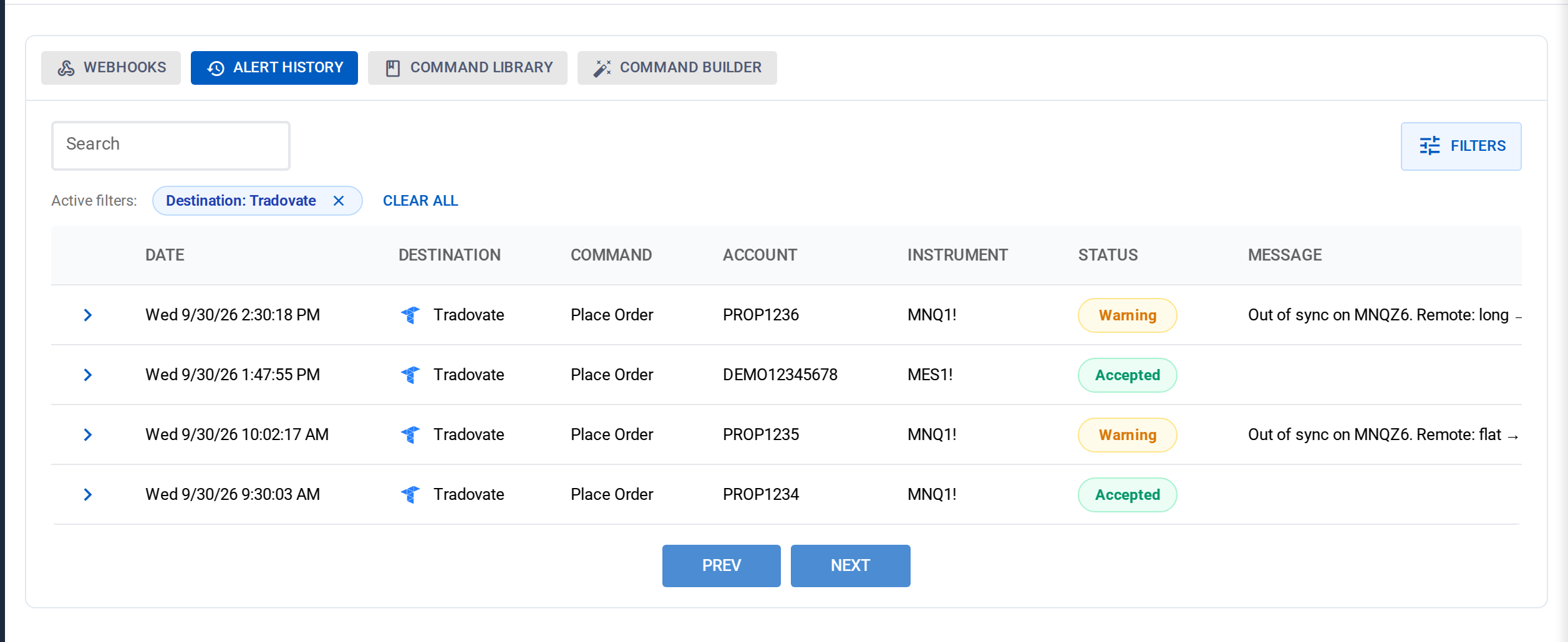
Tradovate's API can accept an order, return an order id, and then reject it a second later in its risk layer. The usual cause is a stop or limit outside the product's exchange price bands. CrossTrade re-checks ordinary placements a few seconds after acceptance, sends you an Order Rejected alert with Tradovate's reason, and turns the Alert History row yellow. A green row means the broker accepted the request, not that it filled or is still working, so if your prices sit near the bands, glance back after placing.
Which exit style to use
For one target and one stop, use take_profit and stop_loss. It is the simplest and the most durable option, and it lives entirely at the broker. For scaling out, a fill-measured bracket, or a trailing runner, use atm_* fields or a named template. If your Pine Script calculates exit levels per trade, build the payload in alert_message with calculated values. And if your strategy manages its own exits with signals, keep a catastrophic stop_loss on the entry anyway, because an exit signal that never arrives is exactly the case the stop is there for.
Frequently asked questions
Do my stops stay in place if my computer is off?
Yes. On the Tradovate destination the entry, the target and stop legs, and native trailing stops are held on Tradovate's servers. Nothing runs on your computer. Features like breakeven and deadline enforcement on demo accounts run on CrossTrade's servers, which are also independent of your machine.
Why don't my bracket distances match my fill price?
A simple take_profit and stop_loss bracket on Tradovate is priced when the order is submitted, not from the fill. Use atm_targets and atm_stops if you want distances applied to the actual fill.
Can I send a trailing stop from TradingView to Tradovate?
Yes. Use order_type=trailingstop with stop_price and trail_offset, or put a trailing runner in a scale-out ATM template.
Do GTD orders and cancel_after work on prop firm evaluation accounts?
Yes. Tradovate's demo environment does not execute those deadlines itself, so CrossTrade enforces them server-side, usually within half a minute of the deadline.
Can I combine atm_ fields with take_profit and stop_loss?
No. Choose one bracket style per entry. Use a simple bracket for one target and one stop, and atm_* for anything with tiers.
Build it once, verify it on Demo
Pick the exit style that matches your plan, send one alert to a Demo account, and watch the whole lifecycle: entry, both legs working, one leg filling, the other cancelling, and a flat account with no leftovers. Then take it live. If you are new to CrossTrade, start a free 7-day trial, link your Tradovate account, and the Tradovate webhooks guide will have your first alert running in minutes.
CrossTrade is execution and automation software, not a broker, financial adviser, or trading strategy. Futures trading involves substantial risk. Test every automated workflow in simulation and verify orders at your broker.