How to Build Webhook Messages Inside Pine Script (alert_message and alert())
Build the whole webhook order inside your Pine Script, so every alert carries its own stop, target and size. alert_message for strategies, alert() for indicators, and a JSON version of each.

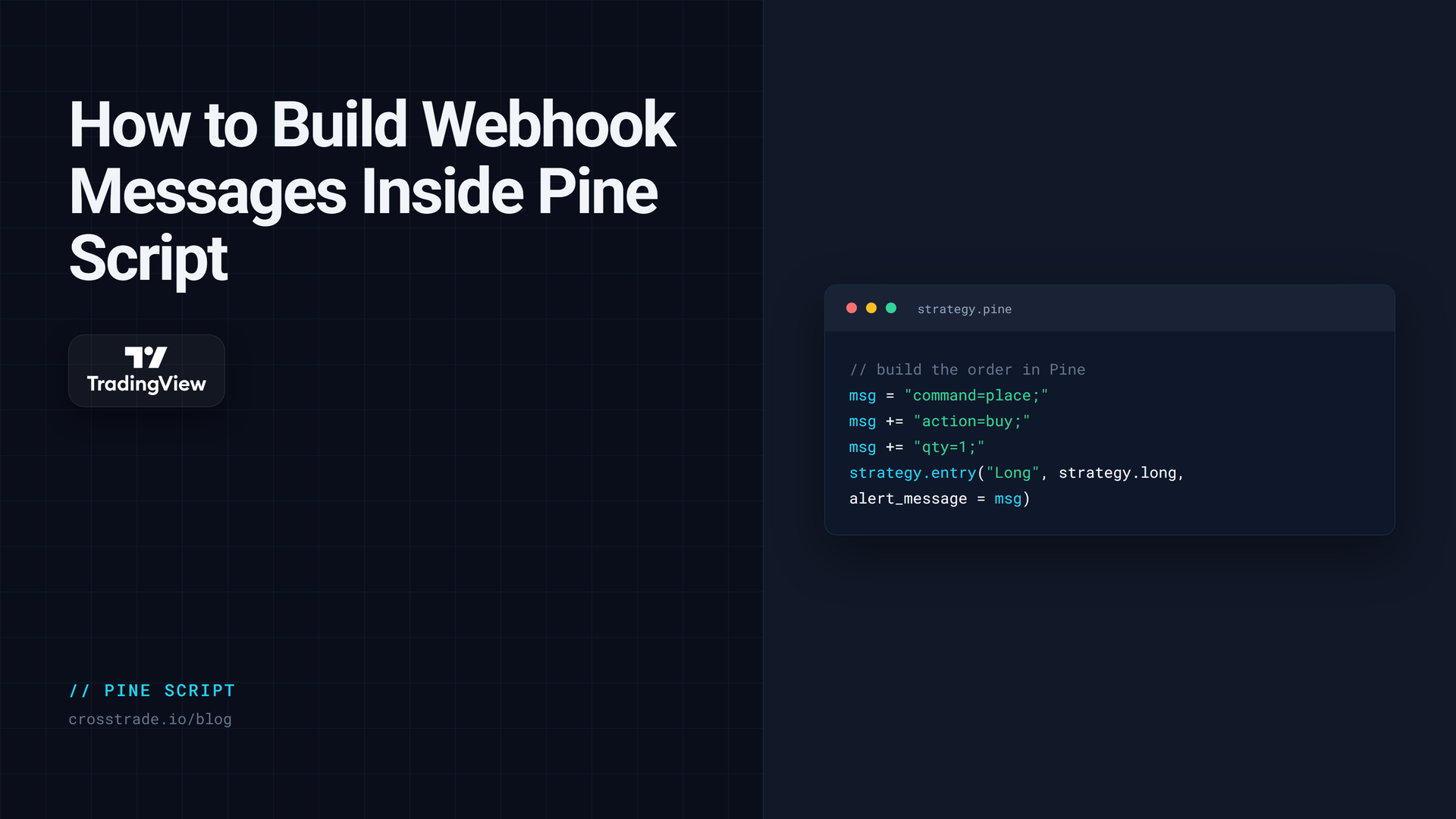
Most automated TradingView setups start with a message typed into the alert box: the account, the symbol, buy or sell, and a few {{placeholders}} for TradingView to fill in. That works until the order needs something the alert box cannot compute. A stop two ATRs below the entry. A target that depends on the day's range. A size that shrinks after a loss. A long and a short that need different messages.
The answer is to build the message inside the script itself. Pine Script can assemble the whole webhook order as a string, with every number calculated for that trade, and hand it to the alert. This guide shows how for strategies with alert_message, for indicators with alert(), and how to produce the same order as JSON.
The message-building examples below feed CrossTrade webhook automation. Use the placeholder reference when you need values inserted in the alert dialog rather than strings assembled in Pine.
Two ways to fill an alert
Placeholders in the alert box. You type the message once. TradingView replaces {{strategy.order.action}}, {{close}} and the rest with live values when the alert fires. Good for scripts you did not write, since you never touch the code.
A message built in Pine. The script creates the complete message for each order, and the alert just passes it through. You control every value and its format. This is the right tool whenever you write or edit the script yourself.
Strategies: alert_message
Every strategy.entry(), strategy.exit() and strategy.order() call accepts an alert_message argument. Whatever string you give it is delivered when that order fills, through the {{strategy.order.alert_message}} placeholder.
Here is a complete Pine Script v6 strategy that builds a CrossTrade order for each entry, with a stop and target calculated in ticks from the signal bar's close:
//@version=6
strategy("CrossTrade alert_message example", overlay = true)

secretKey = input.string("your-secret-key", "CrossTrade secret key")
account   = input.string("Sim101", "Account")
tpTicks   = input.int(40, "Take profit (ticks)", minval = 1)
slTicks   = input.int(20, "Stop loss (ticks)", minval = 1)

fast = ta.sma(close, 10)
slow = ta.sma(close, 30)

// One function builds every order, so long and short can never drift apart.
orderMessage(string side) =>
    bool  isBuy = side == "buy"
    float tp    = isBuy ? close + tpTicks * syminfo.mintick : close - tpTicks * syminfo.mintick
    float sl    = isBuy ? close - slTicks * syminfo.mintick : close + slTicks * syminfo.mintick
    string msg  = "key=" + secretKey + ";"
    msg += "command=place;"
    msg += "account=" + account + ";"
    msg += "instrument=" + syminfo.ticker + ";"
    msg += "action=" + side + ";"
    msg += "qty=1;"
    msg += "order_type=market;"
    msg += "tif=day;"
    msg += "flatten_first=true;"
    msg += "take_profit=" + str.tostring(math.round_to_mintick(tp)) + ";"
    msg += "stop_loss=" + str.tostring(math.round_to_mintick(sl)) + ";"
    msg

if ta.crossover(fast, slow)
    strategy.entry("Long", strategy.long, alert_message = orderMessage("buy"))
if ta.crossunder(fast, slow)
    strategy.entry("Short", strategy.short, alert_message = orderMessage("sell"))
Then create the alert:
- Set the Condition to the strategy, with Order fills only.
- In the Message box, delete everything and type only
{{strategy.order.alert_message}}. - On the Notifications tab, tick Webhook URL and paste your CrossTrade webhook URL.
Each fill now sends the message that script built for it. A few details in the code are worth copying into your own:
syminfo.ticker gives the chart's symbol, such as ES1!, which CrossTrade resolves to the front-month contract. Use it instead of {{ticker}}: TradingView fills placeholders in the alert's Message box, but not inside alert_message.
math.round_to_mintick() rounds a calculated price to a valid tick. A stop at 5823.3 on a quarter-point contract is rejected; 5823.25 is not.
str.tostring() turns numbers into text for the message. Without it, Pine refuses to join a number to a string.
The prices here are absolute. The script sends a real price level, like take_profit=5843.25;. If you would rather send a distance, write it with its unit, take_profit=40 ticks;, and CrossTrade converts it when the order arrives. A number with no unit is always read as a price.
One builder function means a change to the order format happens in one place, so a long and a short can never end up with different fields.
Indicators: alert()
Indicators cannot place strategy orders, so they have no alert_message. They have the alert() function instead: call it with the message you built, and the alert sends that string.
//@version=6
indicator("CrossTrade alert() example", overlay = true)

secretKey = input.string("your-secret-key", "CrossTrade secret key")
account   = input.string("Sim101", "Account")

fast = ta.sma(close, 10)
slow = ta.sma(close, 30)

buildMessage(string side) =>
    string msg = "key=" + secretKey + ";"
    msg += "command=place;"
    msg += "account=" + account + ";"
    msg += "instrument=" + syminfo.ticker + ";"
    msg += "action=" + side + ";"
    msg += "qty=1;"
    msg += "order_type=market;"
    msg += "tif=day;"
    msg += "flatten_first=true;"
    msg

if ta.crossover(fast, slow)
    alert(buildMessage("buy"), alert.freq_once_per_bar_close)
if ta.crossunder(fast, slow)
    alert(buildMessage("sell"), alert.freq_once_per_bar_close)
Create the alert with the indicator as the Condition and Any alert() function call as the trigger. The Message box is not used for these alerts: the text comes from the alert() call.
alert.freq_once_per_bar_close fires only when the bar has closed, so a crossover that appears and disappears inside a bar never sends an order. That one argument prevents most repainting surprises in indicator automation.
The same order as JSON
CrossTrade also reads webhook messages written as JSON, with the same field names. Single quotes around the Pine string let you use double quotes inside it:
jsonMessage(string side) =>
    '{"key":"' + secretKey + '","command":"place","account":"' + account +
     '","instrument":"' + syminfo.ticker + '","action":"' + side +
     '","qty":1,"order_type":"market","tif":"day","flatten_first":true}'
The indentation of the second and third lines is deliberate: Pine treats a line indented by a non-multiple of four spaces as a continuation of the line above. JSON must be one flat object with no duplicate fields; the full rules are in the JSON webhook format docs.
Routing to Tradovate
Everything above goes to NinjaTrader 8 by default. To send the order to a linked Tradovate account instead, add one field to the message: msg += "destination=tradovate;", or "destination":"tradovate" in the JSON version.
Keep your key private
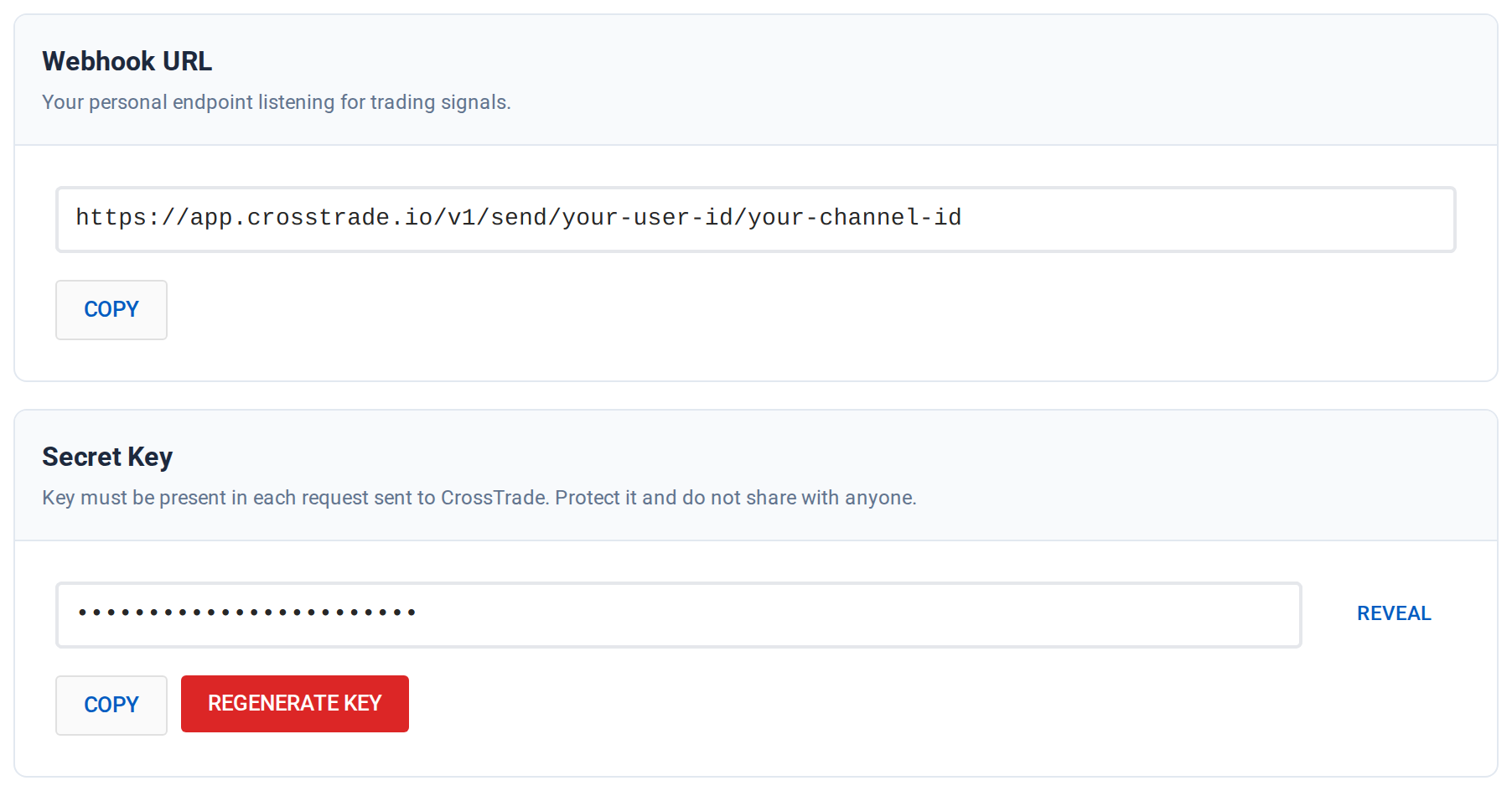
The secret key sits in the script's inputs. Keep scripts that contain it private, and never publish one to TradingView's public library. If a key is ever exposed, generate a new one from your CrossTrade account.
Frequently asked questions
What is alert_message in Pine Script?
An argument on strategy.entry(), strategy.exit() and strategy.order() that stores a string with the order. When the order fills, the alert delivers that string through {{strategy.order.alert_message}}.
Why is my strategy.order.alert_message empty?
The order that filled did not set alert_message, or the alert was not created on the strategy. When only some order calls set it, fills from the others send an empty message, so give every entry and exit its own.
How do I send a webhook from an indicator?
Call alert() with the message and create the alert with the trigger Any alert() function call. The text passed to alert() is what the webhook receives.
Should I use placeholders or build the message in Pine?
Use placeholders for scripts you cannot edit. Build the message in Pine when you need values calculated per trade, such as stops from ATR or different messages for long and short.
Can Pine Script build a JSON webhook message?
Yes. Wrap the Pine string in single quotes so it can contain double quotes, and keep the object flat.
Test it on a Sim account
Point the account input at Sim101 or a Tradovate Demo account, add the strategy to a fast chart, and watch the first few messages arrive in Alert History. If you are new to CrossTrade, start a free 7-day trial, and share your script questions in the CrossTrade Discord.
CrossTrade is execution and automation software, not a broker, financial adviser, or trading strategy. Futures trading involves substantial risk. Test every automated workflow in simulation and verify orders at your broker.