
How to Automate a Daily Profit Target and Loss Limit on Tradovate
Set a daily profit target, loss limit, trailing drawdown, trading hours and a flatten time on a Tradovate account, enforced from CrossTrade's cloud with your computer off.

Every trader has a plan for the day: a number that means stop and bank it, a number that means stop and walk away, the hours worth trading, and a time to be flat. The plan is easy to write. Following it at 2:40 in the afternoon, after a string of trades, is the hard part.
The Tradovate Account Manager takes the plan out of your hands and puts it on a server. You set the rules once per account. CrossTrade watches the account through Tradovate's API from the cloud and acts when a rule is reached, with no desktop software, no NinjaTrader, and your computer off.
This guide covers each control, what it does when it triggers, and the one thing it cannot do, which you should know before you rely on it.
For the product overview and plan requirements, see Account Manager for NinjaTrader and Tradovate. This walkthrough focuses on setting and testing the rules for a direct Tradovate account.
The daily controls
Each managed account gets a monitor that holds its rules. You create it from the Tradovate Account Manager page after linking your Tradovate login, and there is no limit on how many monitors a linked login can run.
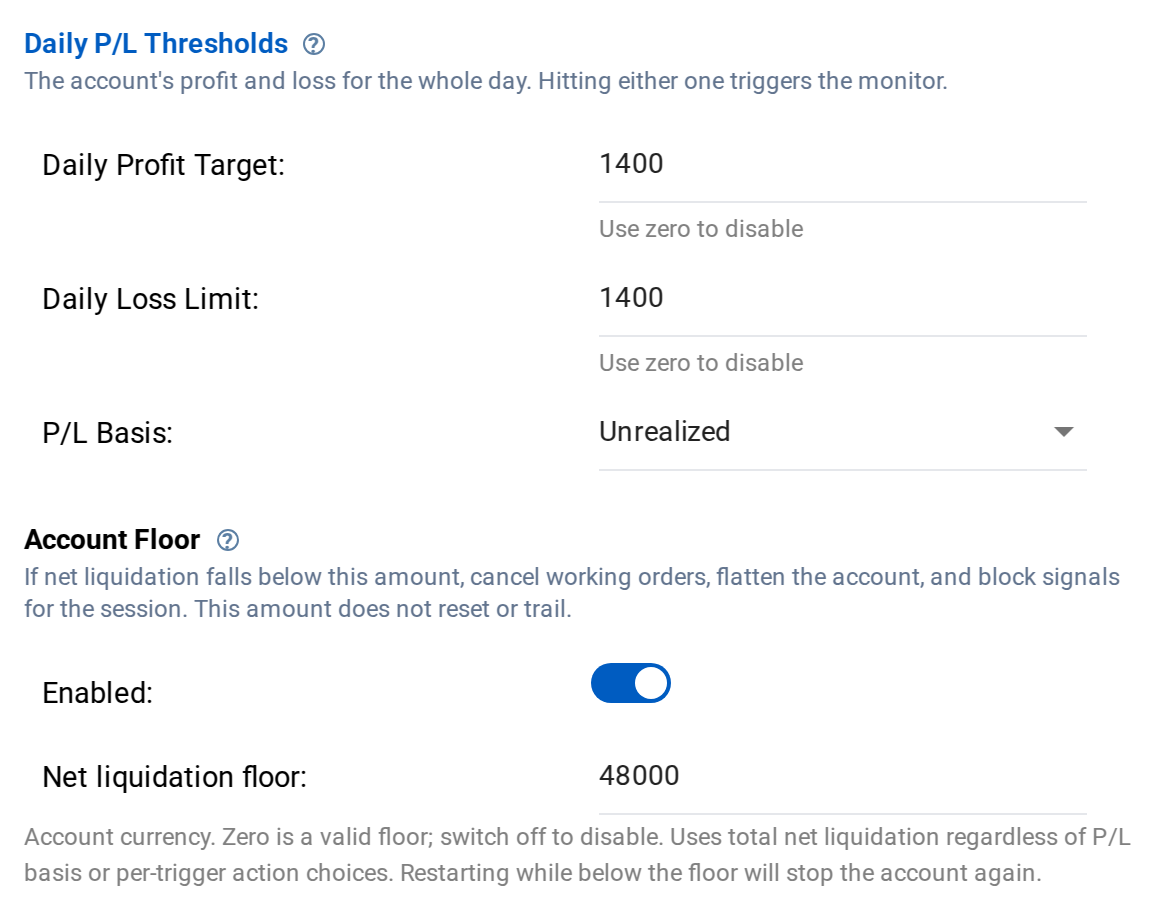
Daily profit target. When the account's session P&L rises above this amount, the monitor triggers. It is the rule most traders skip and most need: a good day ends on your terms, not after you give half of it back.
Daily loss limit. When session P&L falls below this amount, the monitor triggers. Set either to zero to turn it off.
Minimum profit. Once the day is up by a trigger amount you choose, this sets a floor under it. If the day falls back below that floor, the monitor triggers. For example, after the day reaches +$800 you can set a +$300 trigger floor. The eventual exit can differ because enforcement and fills are not instantaneous.
Trailing drawdown. After the day passes your trigger amount, this trails the session's high-water mark and triggers if the account gives back more than your threshold, as a dollar figure or a percentage.
P&L basis. Every rule reads Total P&L (realized plus unrealized), Realized only, or Unrealized only. Unrealized P&L is calculated by CrossTrade from live market data rather than taken from the broker's open P&L figure.
What happens when a rule triggers
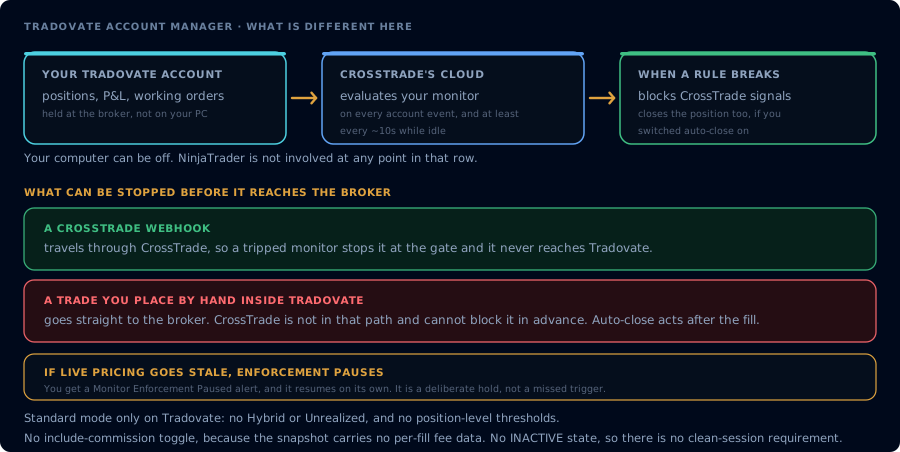
A triggered monitor blocks CrossTrade webhook signals for that account, so your TradingView alerts stop placing orders there. If auto-close is on, it also closes the position: working orders are cancelled first, then the position is liquidated, and then both are re-read. CrossTrade reports success only when the account is confirmed flat and order-free.
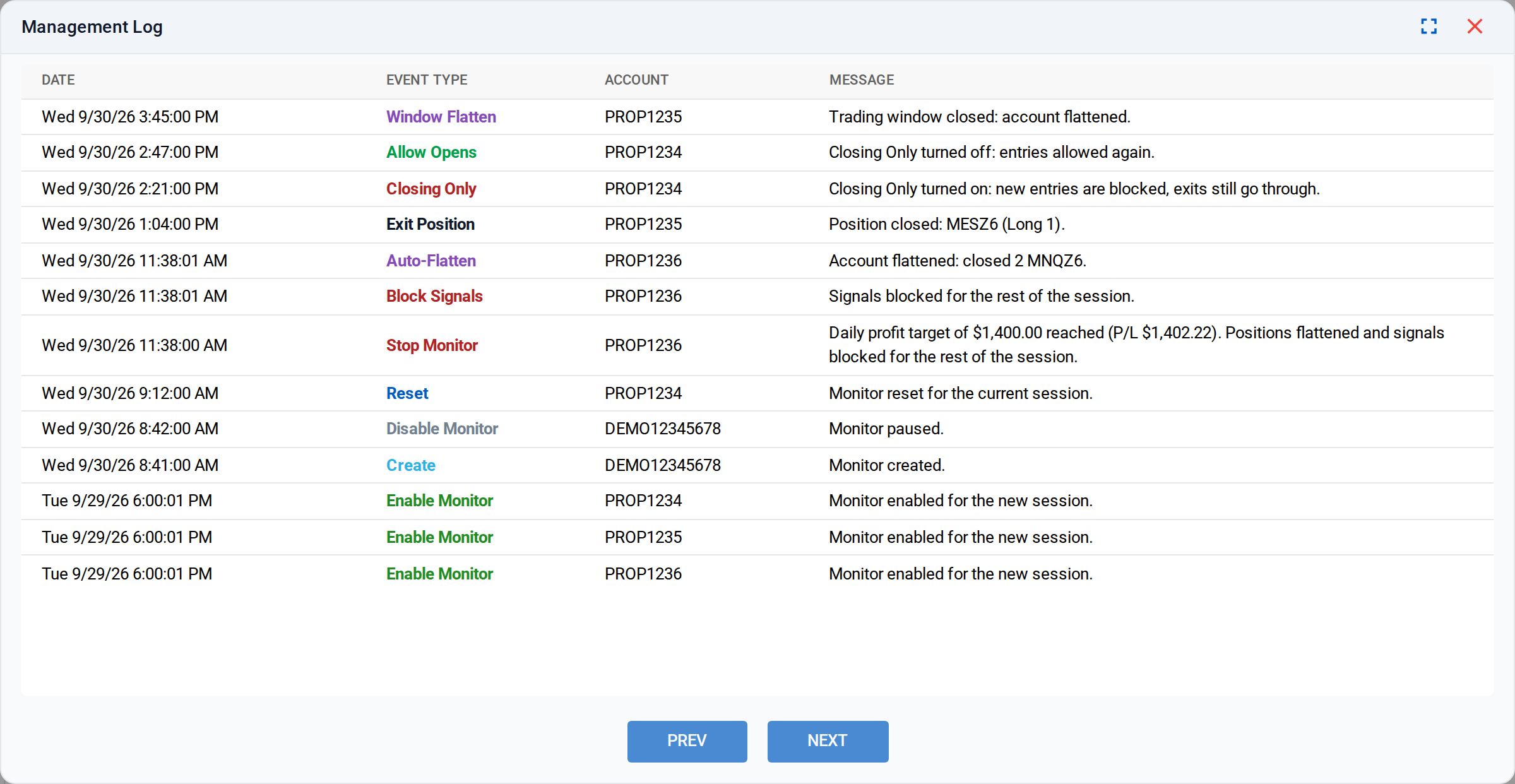
The monitor then shows STOPPED for the rest of the day. To resume, you edit the thresholds and restart it. If you want to take that option off the table for yourself, Monitor Lock keeps a stopped monitor from being restarted during the trading session, so the decision you made calmly in the morning is the one that holds in the afternoon.
Monitors evaluate in near real time as account activity happens, with a background refresh at least about every 10 seconds while the account is idle. If live pricing for an open position goes stale or incomplete, enforcement pauses and you get a Monitor Enforcement Paused alert, rather than CrossTrade acting on numbers it cannot trust. It resumes on its own once pricing is current.
The one thing it cannot do
CrossTrade is in the path of every webhook, so it can stop a signal at the gate. It is not in the path when you click buy or sell inside Tradovate yourself. A manual trade cannot be blocked before it reaches the broker.
Auto-close still applies after the fact: if a manual trade takes the account past a rule, the monitor triggers and closes the position. But it acts after the fill, not before it. If you trade by hand, set your rules with that in mind, and treat the monitor as the backstop it is.
Controlling when you trade
P&L rules decide how much. These decide when.
Scheduled flatten. Set a flatten time in US Eastern, 24-hour format, such as 15:55. The account is flattened at that time every session. It is eligible only in the five minutes after the time you set, so if something prevents it from running inside that window, you will not get a surprise flatten hours later. Leave it blank and nothing is scheduled.
Trading windows. Each monitor can carry up to five windows with start and end times in US Eastern. Outside every enabled window, webhook signals to that account are blocked before they reach the broker. Turn on Flatten for a window and the account is also liquidated when that window ends. A window from 09:30 to 11:30 with flatten on means the morning session ends flat, every day, whether or not you are watching.
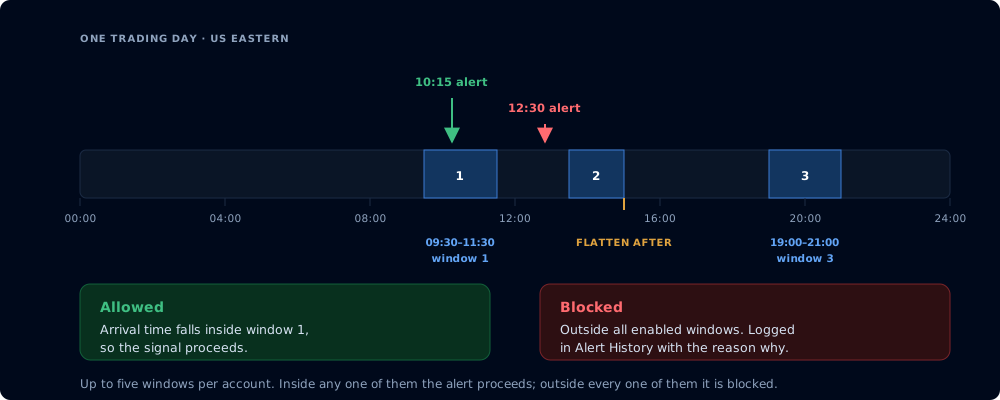
News lockout. For five minutes before and five minutes after a high-impact USD release, the monitor can refuse incoming signals and, if you turn on the second switch, flatten the account as the window opens. The economic-event lockout guide explains the two switches and the global version on the Webhooks page.
Block Signals and Closing Only. These are account settings rather than monitor rules, so they apply immediately even with P&L monitoring switched off. Closing Only lets exits through and refuses anything that would open or add.
A starting setup for a prop account
Here is one reasonable way to configure a monitor on an evaluation or funded account. Treat the numbers as placeholders and derive yours from your firm's current rules and your own plan.
Start with the profit target, because it is the rule that banks good days. Then set a daily loss limit inside the firm's, not equal to it: if the firm's daily limit is $1,000, a personal limit of $600 leaves room for slippage and for the time between a trigger and a confirmed flat. Add a trailing drawdown with a trigger around your typical good day, so a strong morning cannot turn into a red afternoon. Put your best hours in a trading window with flatten on, set a scheduled flatten a few minutes before the firm's cutoff, and turn on news lockout with flatten if the firm has a news rule.
Then add an Account Floor if you want a fixed line under the whole account, not just the day. It compares net liquidation to one amount you choose and does not reset or trail. We cover how it fits with a firm's trailing drawdown in a separate guide.
Pair it with the copier
If you copy trades across Tradovate accounts, configure each follower's monitor independently. Execution-mode followers do not receive resting brackets from the copied entry. A monitor evaluates account-level rules and is not a substitute for an independent broker-side stop. Tandem Mode stops copying when the associated follower monitor stops. See the mode and protection differences before choosing that setup.
Frequently asked questions
Does the Tradovate Account Manager work with my computer off?
Yes. It runs in CrossTrade's cloud against Tradovate's API. Nothing is installed and NinjaTrader is not involved.
Can it stop me from placing a trade by hand in Tradovate?
No. Manual trades cannot be blocked before they reach the broker, because CrossTrade is not in that path. Webhook signals are blocked when a rule triggers, and auto-close still flattens the account after a manual trade takes it past a rule.
Does it count commissions?
There is no commission toggle on Tradovate. The rules evaluate the account's cash-balance snapshot, which does not carry per-fill fee data.
How often does it check the account?
In near real time as activity happens, with a background refresh at least about every 10 seconds when the account is idle.
Which plan includes it?
The Account Manager is part of Pro and above, and is included in the free trial.
Put the plan on a server
Link your Tradovate login, open Tradovate Account Manager, add a monitor, and set your profit target and loss limit first. Watch the management log on a Demo account for a session before relying on it for a funded one. The complete reference, including a side-by-side with the NinjaTrader 8 version, is in the Tradovate Account Manager docs. New to CrossTrade? Start a free 7-day trial.
CrossTrade is execution and automation software, not a broker, financial adviser, or trading strategy. Futures trading involves substantial risk. Automated risk rules are sampled and can be affected by connection loss, missing prices and slippage. Prop firm rules vary; confirm them with your firm.