
How to Use MCP with Tradovate Through CrossTrade
Connect an AI client to linked Tradovate accounts with CrossTrade MCP. Start with read scope, verify account state, and gate every trade-capable tool call.

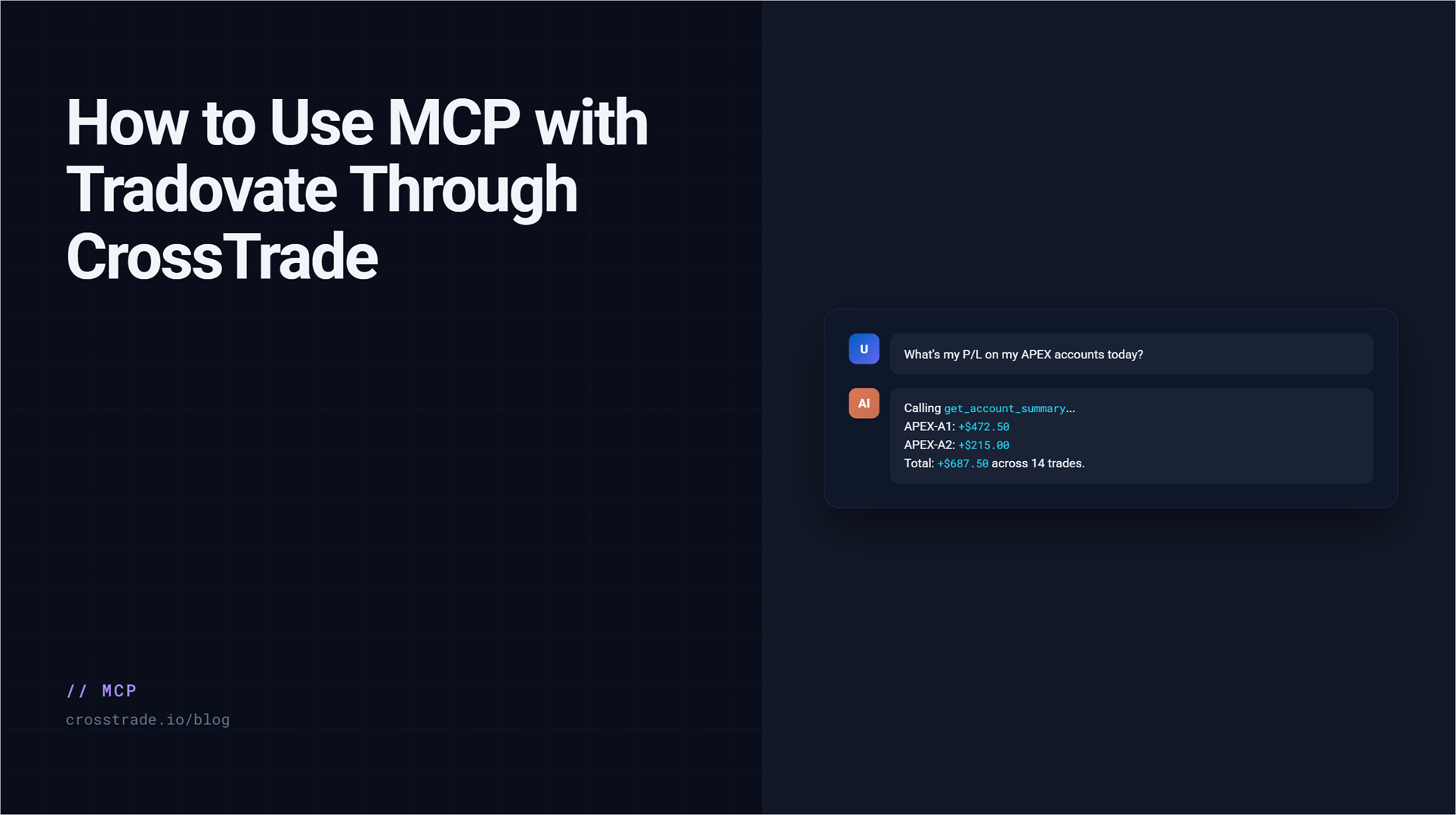
CrossTrade MCP lets a supported AI client inspect and operate a linked Tradovate account through typed tools. The connection runs in CrossTrade's cloud, so Tradovate MCP tools do not require NinjaTrader 8, the CrossTrade Add-On, or a Windows VPS.
The useful part is not simply that an AI client can call an order tool. MCP gives the client a defined tool inventory, structured arguments, and an OAuth permission boundary. You can begin with read-only account inspection, verify exactly what the client can see, and grant trade access only for a workflow that needs it.
This guide shows the current requirements, a safe first session, the main Tv_* tools, and the difference between MCP, REST, and TradingView webhooks.
The Tradovate MCP overview covers supported workflows and Elite access. This guide takes you from linking the account to the first read-only tool call.
What you need
- CrossTrade Elite: Hosted MCP tool calls require an Elite subscription. An eligible active trial can also expose the tools while the trial is active.
- A linked Tradovate identity: Link Demo or Live under My Account > Brokers.
- An MCP-capable client: Claude Desktop, Claude Code, Cursor, Continue, Cline, and remote MCP connectors in supported ChatGPT plans are documented setup paths.
- Browser access for consent: The first connection uses CrossTrade's OAuth flow.
- No NT8 requirement: The
Tv_*tools execute server-side against the linked Tradovate identity.
The hosted endpoint is:
https://app.crosstrade.io/v1/api/mcpUse the client-specific instructions in MCP Setup for AI Clients. Most current clients only need the hosted URL and then open a browser for OAuth consent. Do not paste a webhook secret, Tradovate password, or REST bearer token into the conversation.
Choose the scope before the prompt
CrossTrade MCP has two permission scopes:
mcp:read: Account, position, order, fill, balance, margin, contract, diagnostic, and journal reads.mcp:trade: Everything in read scope, plus order placement, cancellation, changes, closes, flattening, and reversals.
A read-only client does not merely receive an error when it tries to trade. CrossTrade filters the tool list so write-capable tools normally are not shown to that session at all. If the workflow is analysis, reconciliation, or a pre-trade brief, stop at mcp:read.
Use mcp:trade only when the client must change broker state. Scope is an enforcement boundary, but it is not a substitute for human approval. CrossTrade does not automatically insert a confirmation dialog before every tool call. Your instructions and the client's own approval settings should require explicit confirmation.
Read the full MCP scopes documentation before authorizing trade access.
Connect your client
- Add the CrossTrade MCP URL to the client.
- Start a conversation that asks the client to list or use CrossTrade tools.
- Complete the CrossTrade OAuth consent page in your browser.
- Select the smallest scope needed for the session.
- Return to the client and run a read-only verification prompt.
Client menus change over time, especially for remote connectors. Follow the current CrossTrade setup page rather than copying an old configuration from a forum or video.
Your first read-only session
Begin by checking the Tradovate link and account context. A useful first prompt is:
Use only CrossTrade read tools. CallTv_Status, thenTv_ListAccounts, thenTv_AccountSnapshot. Tell me which Tradovate identities are linked, whether each is Demo or Live, and summarize open positions and working orders. Do not place, cancel, change, close, flatten, or reverse anything.
This sequence answers three separate questions:
Tv_Statuschecks linked identities, environments, and token status.Tv_ListAccountsreturns account names and their Tradovate environment.Tv_AccountSnapshotreturns a one-shot view of balances, open positions with P&L, and working orders.
Verify account names carefully. A personal brokerage account normally appears under Live. Many evaluation and funded-firm accounts use Tradovate's Demo environment. MCP can identify the environment, but it cannot decide whether your firm permits third-party automation.
Use the specialized read tools
After the account snapshot, use narrower tools instead of repeatedly asking for everything:
Tv_GetPositionfor the signed net position on one account and instrument.Tv_ListOrdersfor working orders, optionally filtered to one account.Tv_GetOrderfor the current state of one order.Tv_GetOrderLifecyclefor the order, submitted commands, versions, command reports, and broker rejection text.Tv_ListFillsfor recent fills.Tv_CashBalancesandTv_MarginSnapshotsfor account and margin context.Tv_SuggestContractsto resolve a root or partial symbol to a current Tradovate contract.Tv_GetWatermarksfor P&L highs tracked by CrossTrade Account Manager.
For an order question, prefer the lifecycle tool over guessing from a single status field. It is designed to expose broker command reports and rejection reasons.
A safe trade-capable workflow
When you intentionally authorize mcp:trade, separate analysis from execution. A good order workflow has four gates.
1. Ground the account state
Have the client call Tv_GetPosition, Tv_ListOrders, and the relevant account read before proposing a write. This reduces the chance of adding to an unexpected position or duplicating protection.
2. Resolve the contract
CrossTrade accepts continuous symbols such as MES1!, NinjaTrader-style expiries such as MES 09-26, and Tradovate symbols such as MESU6. Ask the client to state the concrete contract it resolved before execution when expiry matters.
3. Restate the exact action
Require a plain-language summary containing the account, environment, instrument, side, quantity, order type, time in force, prices, and protection. Then approve or reject that one action.
Before using any write tool, show me the exact Tradovate account and environment, resolved contract, side, quantity, order type, prices, and attached protection. Wait for my confirmation. Approval applies to one tool call only.
4. Verify the broker result
After Tv_PlaceOrder, save the returned order ID and call Tv_GetOrder or Tv_GetOrderLifecycle. If the order filled, verify the resulting position and protective orders. If the result is ambiguous, stop. Do not ask the client to send the same order again until you have reconciled the broker state.
What the Tradovate trade tools can do
The current hosted MCP surface includes tools to:
- Place market, limit, stop, stop-limit, MIT, and trailing orders.
- Attach server-side take-profit and stop-loss brackets.
- Use inline native multibracket and continuous-trailing fields.
- Cancel one order, one account's orders, or every linked account's orders.
- Change or cancel-and-replace a working order.
- Protect an existing position with a fresh bracket.
- Close fully or partially, flatten with filters, flatten everything, or reverse.
High-impact names are intentionally obvious. Tv_CancelAllOrders affects every linked identity's working orders. Tv_FlattenEverything liquidates every position and cancels working orders across all linked identities. Never authorize these tools through a vague instruction such as “clean everything up.”
Native brackets, multibrackets and continuous trailing are generally available, as are CrossTrade-managed target-fill breakeven and profit-triggered trailing. The latter require CrossTrade's service to evaluate and adjust the stops. Tradovate copier Order mode remains beta. See the ATM reference for current limits.
Where results are recorded
Direct MCP calls do not create entries in webhook Alert History. Alert History is the audit surface for incoming webhook signals. For an MCP order, use the returned tool result and the Tradovate order tools, especially Tv_GetOrderLifecycle, to reconcile what happened.
An MCP client with read scope can call CrossTrade diagnostics such as GetSignalHistory to inspect existing webhook rows. That does not turn an MCP order into a webhook event.
When to use MCP instead of REST or webhooks
- Use MCP when a human is working with an AI client and wants typed tools, account context, and explicit OAuth scopes.
- Use REST when an application needs deterministic request-response integration under your own code and tests.
- Use a TradingView webhook when a TradingView alert is the source of the trading instruction and you want the result in Alert History.
CrossTrade's WebSocket API now supports linked Tradovate accounts server-side. Use origin=tradovate for account/order/fill events and P&L, and Tv_* RPC for supported requests. Tradovate market data is not streamed. REST and WebSocket use a CrossTrade Bearer token; MCP uses its separate OAuth flow.
Common mistakes to avoid
- Granting
mcp:tradefor a workflow that only needs inspection. - Assuming the client will always ask for confirmation without being instructed to do so.
- Confusing a Tradovate Demo identity with a personal Live identity.
- Using a vague account reference instead of the exact linked account name.
- Expecting MCP orders to appear in Alert History.
- Retrying an ambiguous placement before checking the order lifecycle.
- Assuming technical support means a prop firm permits the workflow.
Start with read access
Connect your client using the MCP setup guide, authorize mcp:read, and ask for a linked-account snapshot. Once you can identify the correct Demo account, positions, and working orders without changing anything, read the MCP workflows and safety guide before considering trade scope.

CrossTrade is execution and automation software, not a broker, financial adviser, or trading strategy. AI systems can produce incorrect instructions and tool calls. You are responsible for every action authorized through your account. Futures trading involves substantial risk.