
How to Automate TradingView Strategies with CrossTrade
Learn how to automate your TradingView strategy and send real-time trading signals to NinjaTrader 8 using CrossTrade, from open-source scripts to closed-source workarounds.

When you automate a TradingView strategy through CrossTrade, every signal your strategy generates becomes a real order in NinjaTrader 8. That means the webhook payload you build has to give NT8 exactly what it needs: which account, which instrument, which direction, how many contracts, and what to do about exits.
This guide covers the full automation path. We'll start with understanding what kind of strategy you're working with, walk through command examples for every common strategy type, show you how to keep TradingView and NinjaTrader in sync, and cover the most common problems people run into.
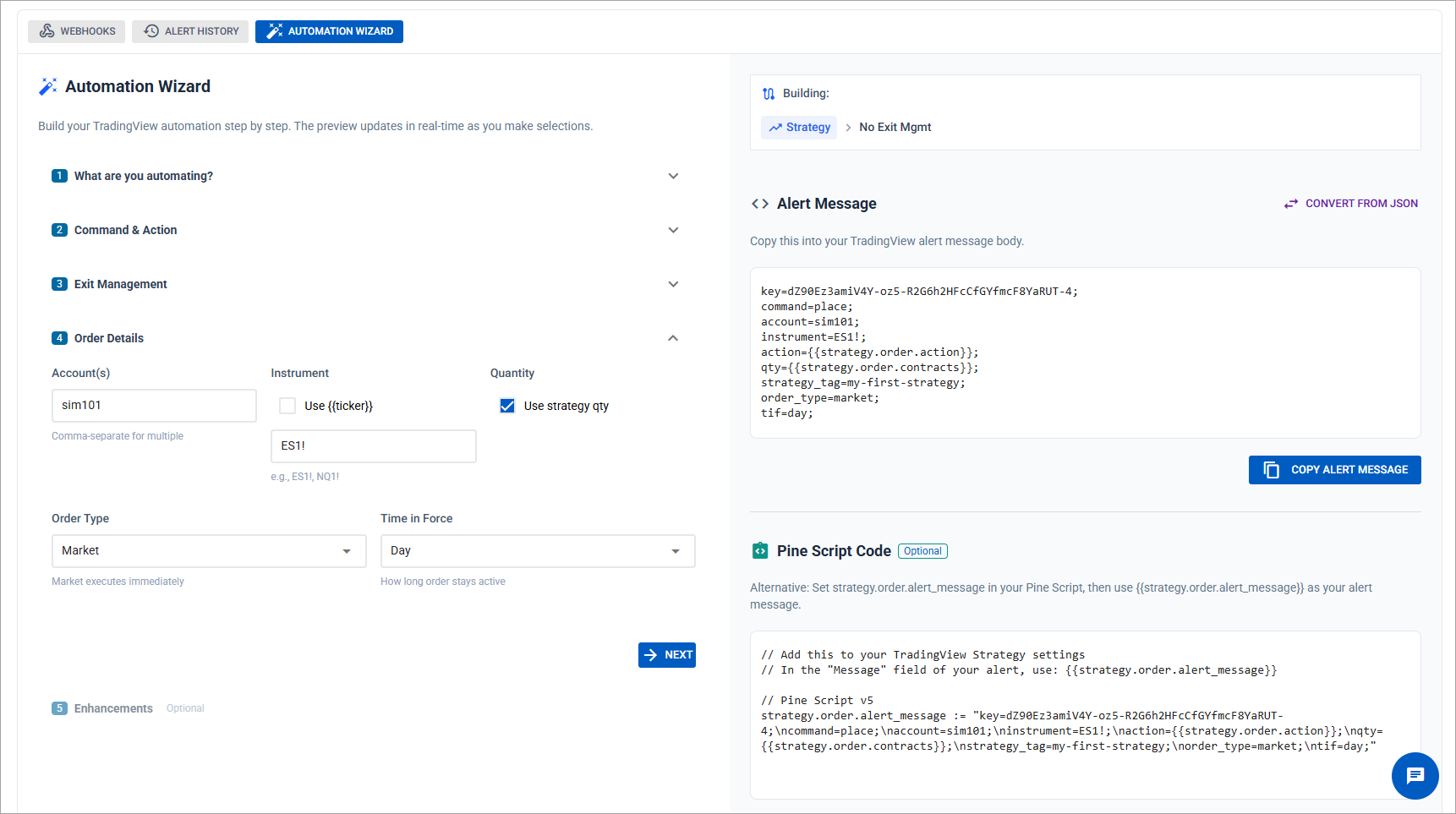
Build your first command visually with the Automation Wizard — no manual typing required
Open Source vs. Closed Source: Know What You're Working With
The first question is whether you have access to the strategy's Pine Script source code.
Open-source strategies show the full Pine Script in the Pine Editor. This is the best-case scenario because you can write custom strategy.order.alert_message fields that build the entire CrossTrade payload inside the script. You control every field: account, instrument, action, quantity, stop loss, take profit, and any advanced options. The webhook message is constructed in Pine and sent exactly as you wrote it.
Closed-source strategies show a protected notice instead of source code. You can't modify the script or customize the alert message from within Pine. This limits your options, but you can still automate by using TradingView's built-in dynamic variables ({{strategy.order.action}}, {{strategy.order.contracts}}, {{ticker}}) in a manually crafted webhook payload.
If you have source access and want to build custom alert messages, read the next section. If your strategy is closed-source or you don't want to edit Pine Script, skip ahead to Automating Closed-Source Strategies.
Building Custom Alert Messages in Pine Script
When you control the source code, you can construct the entire CrossTrade payload inside strategy.entry() and strategy.exit() calls using the alert_message parameter. This is the most accurate way to automate a strategy because every field is calculated and locked at the moment the signal fires.
Here's an example that calculates stop loss and take profit levels based on a 50-tick offset and sends a complete PLACE command:
// Calculate stop loss and target prices based on 50 ticks
if not na(tickSize)
    stopLossTicks = 50 * tickSize
    targetTicks = 50 * tickSize

    if longCondition
        stopLossPrice = close - stopLossTicks
        targetPrice = close + targetTicks
        alertMessage = 'key=your-secret-key;'
        alertMessage += 'command=PLACE;'
        alertMessage += 'account=sim101;'
        alertMessage += 'instrument={{ticker}};'
        alertMessage += 'action=BUY;'
        alertMessage += 'qty=1;'
        alertMessage += 'order_type=MARKET;'
        alertMessage += 'tif=DAY;'
        alertMessage += 'flatten_first=true;'
        alertMessage += 'take_profit=' + str.tostring(targetPrice) + ';'
        alertMessage += 'stop_loss=' + str.tostring(stopLossPrice) + ';'

        strategy.entry("Long", strategy.long, alert_message=alertMessage)
The {{ticker}} variable is resolved by TradingView at alert time. If you're trading continuous contracts like ES1! or NQ1!, CrossTrade automatically converts these to NinjaTrader's format (e.g., ES 06-26). You can also hard-code the instrument name if you prefer to manage contract rollovers manually.
For more on building Pine Script strategy messages with dynamic TP/SL levels, see the full walkthrough in Tick and Percentage Based Stops and Targets.
Automating Closed-Source Strategies
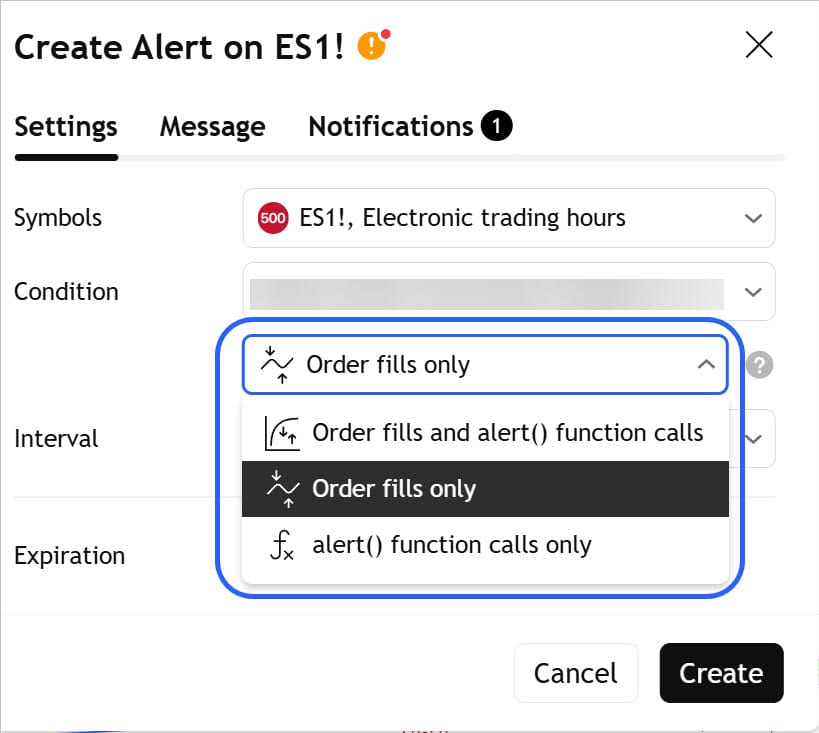
If you can't modify the Pine Script, you'll build the webhook payload manually using TradingView's supported placeholders. When you create an alert on a strategy, TradingView offers three condition trigger options:
Order fills and alert() function calls fires on either event. Order fills only fires when a strategy order is filled (entry or exit). alert() function calls only fires when the script uses manual alert() calls.
For most strategy automation, you want Order fills only. This fires on every entry and exit the strategy generates.
The default payload for a closed-source strategy uses dynamic variables that TradingView replaces at alert time:
key=your-secret-key;
command=PLACE;
account=sim101;
instrument={{ticker}};
action={{strategy.order.action}};
qty={{strategy.order.contracts}};
order_type=MARKET;
tif=DAY;
{{strategy.order.action}} resolves to buy or sell. {{strategy.order.contracts}} resolves to the number of contracts. {{ticker}} resolves to the chart symbol. Everything else is static.
This handles basic entry and exit signals. For more control, you can add CrossTrade's advanced options to this payload: flatten_first, require_market_position, brackets, and more. We'll cover these in the command examples below.
What if the strategy has no useful condition triggers? Some closed-source strategies don't expose strategy.order.alert_message and only pre-fill the alert with a generic log message like "Order {{strategy.order.action}} filled on {{ticker}}." You can still replace this with a CrossTrade payload using the dynamic variables above. If the strategy doesn't even support those variables, your options are limited to rebuilding the logic as an indicator that uses alertcondition() and pairing it with the XT Alert Builder strategy to generate webhook payloads.
Command Examples by Strategy Type
These are the most common strategy patterns and the webhook payloads that handle them correctly. Every example uses continuous contracts ({{ticker}}) and can be sent to multiple accounts by comma-separating the account field (e.g., account=sim101,sim102,sim103). See Multi-Account Placement for details.
Stop and Reverse
The strategy alternates between long and short with no flat period in between. A momentum crossover strategy is a typical example. Use flatten_first=true to close the opposing position before the new entry is placed.
key=your-secret-key;
command=PLACE;
account=sim101;
instrument={{ticker}};
action={{strategy.order.action}};
qty={{strategy.order.contracts}};
order_type=MARKET;
tif=DAY;
flatten_first=true;
Entry with Bracket Orders (TP/SL)
The strategy enters a position and you want CrossTrade to place take profit and stop loss orders automatically. You can define these as tick values, percentages, dollar amounts, or exact prices.
key=your-secret-key;
command=PLACE;
account=sim101;
instrument={{ticker}};
action={{strategy.order.action}};
qty={{strategy.order.contracts}};
order_type=MARKET;
tif=DAY;
take_profit=100ticks;
stop_loss=100ticks;
If you're relying on the bracket orders to manage the exit, you don't need a separate close command. The TP and SL orders handle it. For full bracket configuration options including wait-for-fill behavior, see the Bracket Orders docs.
Entry with ATM Strategy
If you prefer to use a NinjaTrader ATM Strategy template for trade management instead of CrossTrade's bracket fields, pass the ATM name in the atm_strategy field. The template name must match exactly what appears in NT8 (case-sensitive). Include flatten_first=true to cancel any existing ATM pending orders before the new entry.
key=your-secret-key;
command=PLACE;
account=sim101;
instrument={{ticker}};
action={{strategy.order.action}};
qty={{strategy.order.contracts}};
order_type=MARKET;
tif=DAY;
atm_strategy=MyATMStrategy;
flatten_first=true;
For more on creating and using ATM templates with CrossTrade, see the ATM Strategy docs.
Partial Exits (Scaling Out)
The strategy exits in stages rather than all at once. Use CLOSEPOSITION with the quantity field set to a decimal representing the percentage of the position to close. This example scales out one-third of the position:
key=your-secret-key;
command=CLOSEPOSITION;
account=sim101;
instrument={{ticker}};
require_market_position=long,short;
quantity=0.33;
The require_market_position field ensures the close command only fires if the account actually holds a position in the specified direction. This prevents errors when TradingView fires an exit signal but the NT8 account is already flat. You can also specify quantity as an absolute number of contracts instead of a percentage. See the Close Position docs for all options.
Long Only or Short Only
The strategy only trades one direction. The entry command is the same as any other PLACE, but the exit uses require_market_position to ensure it only closes positions in the expected direction.
Entry (long only):
key=your-secret-key;
command=PLACE;
account=sim101;
instrument={{ticker}};
action={{strategy.order.action}};
qty={{strategy.order.contracts}};
order_type=MARKET;
tif=DAY;
Exit (only closes long positions):
key=your-secret-key;
command=CLOSEPOSITION;
account=sim101;
instrument={{ticker}};
require_market_position=long;
Keeping TradingView and NinjaTrader in Sync
This is where most automation problems live. TradingView strategies are stateful: the strategy "knows" whether it's long, short, or flat, and it generates signals based on that internal state. But NinjaTrader doesn't know what TradingView thinks. If a signal is missed (connection drop, rate limit, NT8 restart), TradingView keeps going as if the order filled while NT8 sits in a different state entirely. Now every subsequent signal is wrong.
Strategy Sync solves this. By adding sync_strategy=true to your PLACE command along with TradingView's position state variables, CrossTrade compares what your strategy thinks the position is with what NT8 actually has before executing. If they don't match, the system handles the mismatch based on the behavior you choose.
Here's a full sync-enabled payload:
key=your-secret-key;
command=PLACE;
account=sim101;
instrument={{ticker}};
action={{strategy.order.action}};
qty={{strategy.order.contracts}};
order_type=MARKET;
tif=DAY;
flatten_first=true;
sync_strategy=true;
market_position={{strategy.market_position}};
prev_market_position={{strategy.prev_market_position}};
target_quantity={{strategy.position_size}};
out_of_sync=flatten;
The three dynamic variables (market_position, prev_market_position, target_quantity) are populated by TradingView at alert time. You never need to calculate or hard-code these values.
The out_of_sync parameter controls what happens when a mismatch is detected:
wait (default) rejects the order and logs the mismatch. No action is taken. This is the safest option. flatten rejects the order and immediately flattens the NT8 position, resetting the account to flat so the next clean entry signal can proceed. resync calculates the exact difference between the current NT8 position and the target, then submits a corrective market order automatically. If the strategy says you should be long 3 but NT8 only has 1 contract, resync buys 2 more. If the position already matches, nothing happens. ignore bypasses the check entirely and places the order regardless. Use with caution.
For most automated strategies, out_of_sync=flatten is the right starting point. If you want fully hands-off correction, resync is the most powerful option but should be tested thoroughly in simulation first.
If you're using an ATM Strategy for exits and want TradingView's exit signals blocked (so the ATM handles it), add strategy_exit_block=true to prevent any order where the previous market position wasn't flat.
For the full technical breakdown, see the Strategy Sync docs.
Test Before You Trade
Before pointing a live TradingView alert at your NT8 account, test your payload using the tools built into the CrossTrade dashboard.
The Webhook Trader sends alert payloads directly to NinjaTrader the same way TradingView would. Paste your command, click Send, and check NT8 to confirm the order arrived as expected. This is the fastest way to verify that your account name, instrument, and command structure are correct before creating an alert.
Note that TradingView dynamic variables like {{strategy.order.action}} won't resolve in the Webhook Trader since they're replaced by TradingView at alert time. You'll need to substitute static values for testing (e.g., action=BUY instead of action={{strategy.order.action}}).
The Automation Wizard builds commands visually. Select a command type, fill in the fields using dropdowns and inputs, and the Wizard generates the properly formatted payload. You can save commands to the Command Library for reuse and load them directly into the Webhook Trader to test. This is the best starting point if you're new to CrossTrade's command syntax.
Troubleshooting Common Issues
These are the problems that come up most often when automating strategies. Check these before reaching out to support.
"My strategy fired but nothing happened in NT8." Start with the basics: is the XT Add-On connected? Is the ATI (Automated Trading Interface) enabled in NT8? Is the secret key in your payload correct? Check the Alert History page on the dashboard to see if CrossTrade received the webhook at all. If it shows up in Alert History with an error, the message tells you exactly what went wrong.
"I'm getting double entries." This usually means your alert condition is set to "Order fills and alert() function calls" and the strategy fires both. Switch to "Order fills only." If you're using separate entry and exit alerts and both are firing on every signal, check that your exit alert uses require_market_position to prevent it from acting when there's no position to close.
"My bracket orders aren't attaching to the position." If you're using take_profit and stop_loss in your payload, the entry order must fill before the bracket orders are placed. CrossTrade handles this with wait-for-fill logic, but if the entry is a limit order that hasn't filled yet, the brackets won't appear until it does. See the Bracket Orders docs for details on how fill sequencing works.
"My strategy keeps buying when I'm already long." The strategy is probably firing "add to position" signals and you don't want them. Add require_market_position=flat to only allow entries when the account has no position, or use max_positions=1 to cap the position size. Alternatively, enable Strategy Sync to let CrossTrade compare states before executing.
"The instrument name doesn't match and my order fails." NinjaTrader requires a specific instrument format (e.g., ES 06-26). If you're using {{ticker}} with a continuous contract chart (e.g., ES1!), CrossTrade converts it automatically. If you're on a specific contract chart and {{ticker}} resolves to something NT8 doesn't recognize, try hard-coding the instrument or switching to a continuous contract chart. The account name is also case-sensitive and must match NT8 exactly.
"My strategy got out of sync and now every signal is wrong." This is exactly what Strategy Sync prevents. If you're not already using sync_strategy=true, add it to your payload with the TradingView position variables. If you need an immediate fix, use CLOSEPOSITION or FLATTENEVERYTHING from the Webhook Trader to reset NT8 to flat, then let the strategy re-enter on its next clean signal.
Quick Reference: Which Payload Do I Need?
| Strategy Type | Key Fields | Notes |
|---|---|---|
| Stop and reverse | flatten_first=true | Closes opposing position before new entry |
| Entry + TP/SL brackets | take_profit, stop_loss | Can use ticks, %, $, or price |
| Entry + ATM strategy | atm_strategy=Name, flatten_first=true | ATM name is case-sensitive |
| Partial exits | CLOSEPOSITION, quantity=0.33 | Decimal = percentage, integer = contracts |
| Long only / Short only | require_market_position=long on exit | Prevents closing nonexistent positions |
| Synced strategy | sync_strategy=true + TV position variables | Prevents state drift |
| Multi-account | account=acct1,acct2,acct3 | Comma-separated, same command |
For the complete command reference, see The Complete Guide to NinjaTrader Commands. For advanced options not covered here, see the Webhooks docs.
New to CrossTrade? Start your free 7-day trial and connect TradingView to NinjaTrader in minutes.