
How to Connect to Your CrossTrade VPS from Your Android Phone or Tablet
Access your CrossTrade VPS from anywhere using Microsoft's free Windows App. This guide walks you through the full setup on Android in just a few minutes.

Your trading automation never sleeps — and now you don't have to be at your desk to manage it. Whether you're away from your computer, traveling, or just want to check in on your strategies from the couch, you can connect directly to your CrossTrade VPS from any Android device using Microsoft's free Windows App.
This guide walks you through the full setup in a few minutes.
What Is the Windows App?
The Windows App (formerly known as Microsoft Remote Desktop) is Microsoft's official RDP client for mobile devices. It gives you full remote desktop access to any Windows machine — including your CrossTrade VPS — directly from your phone or tablet.
It's free, runs on both iOS and Android, and works over any internet connection including cellular data.
- Android: Download on Google Play
Note: If you search the Play Store and see "Remote Desktop 8" listed alongside "Windows App," download Windows App. Remote Desktop 8 is the older version and is no longer supported by Microsoft.
Before You Begin
You'll need the following, all of which can be found in the CrossTrade dashboard under My Servers → Overview → Connection Details:
- Your VPS IP Address
- Your VPS Username (Administrator)
- Your VPS Password
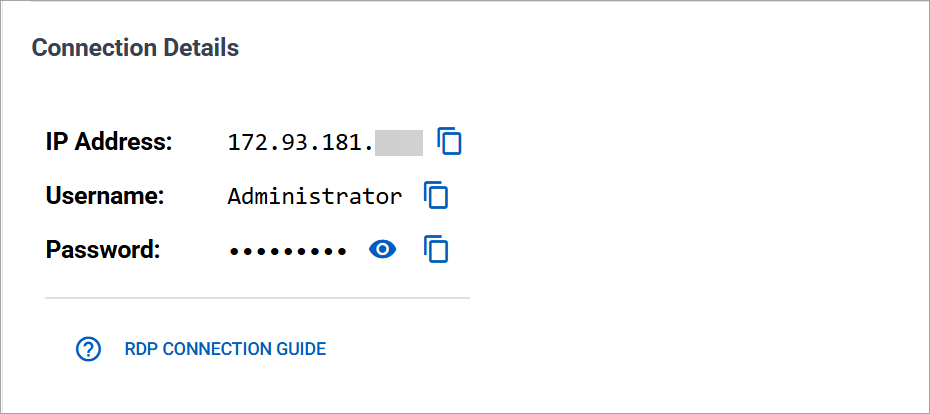
Your connection details were also emailed to you when you purchased your VPS. If you can't locate them, log in at app.crosstrade.io/user/vps.
Android Setup
Step 1. Download and open the Windows App from Google Play.
Step 2. Tap the + icon and select PC Connection.
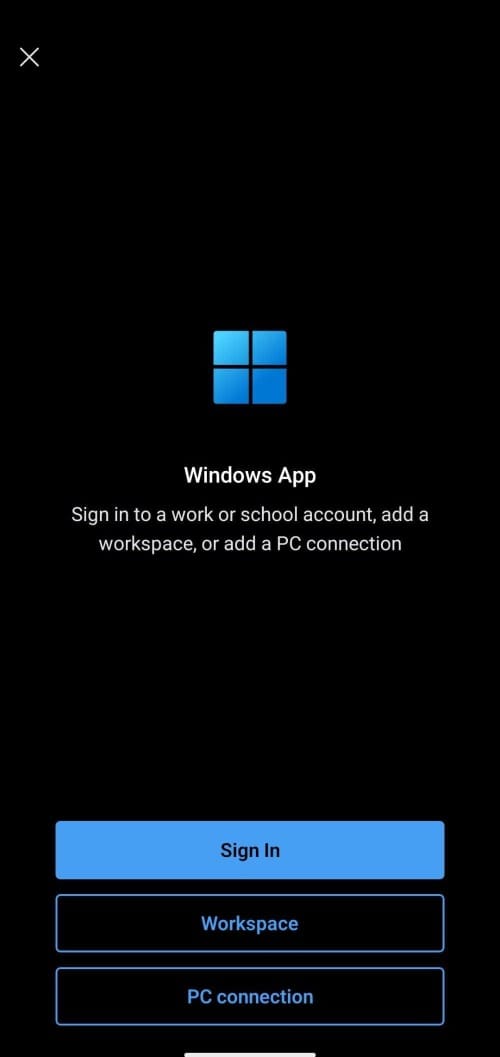
Step 3. Enter your VPS IP address in the PC Name field.
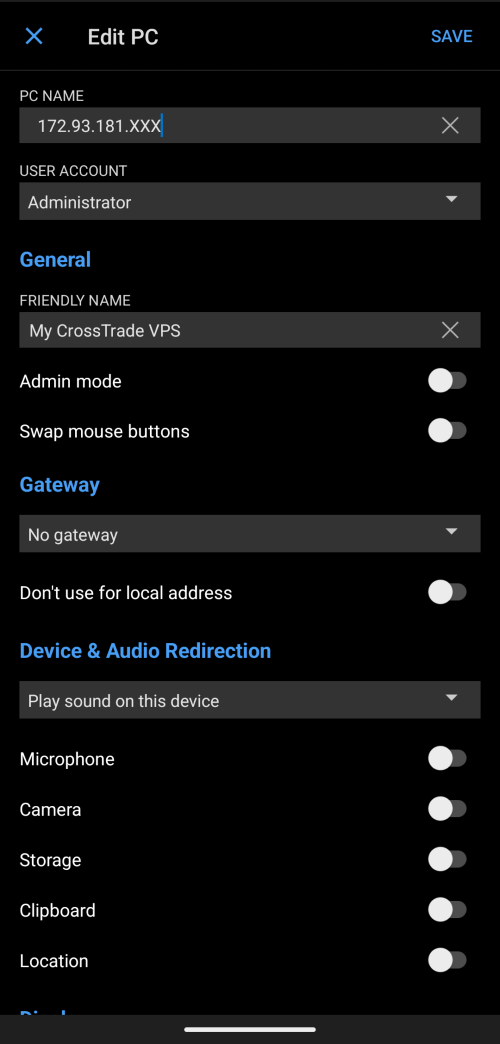
Step 4. Under User Account, select Add User Account and enter:
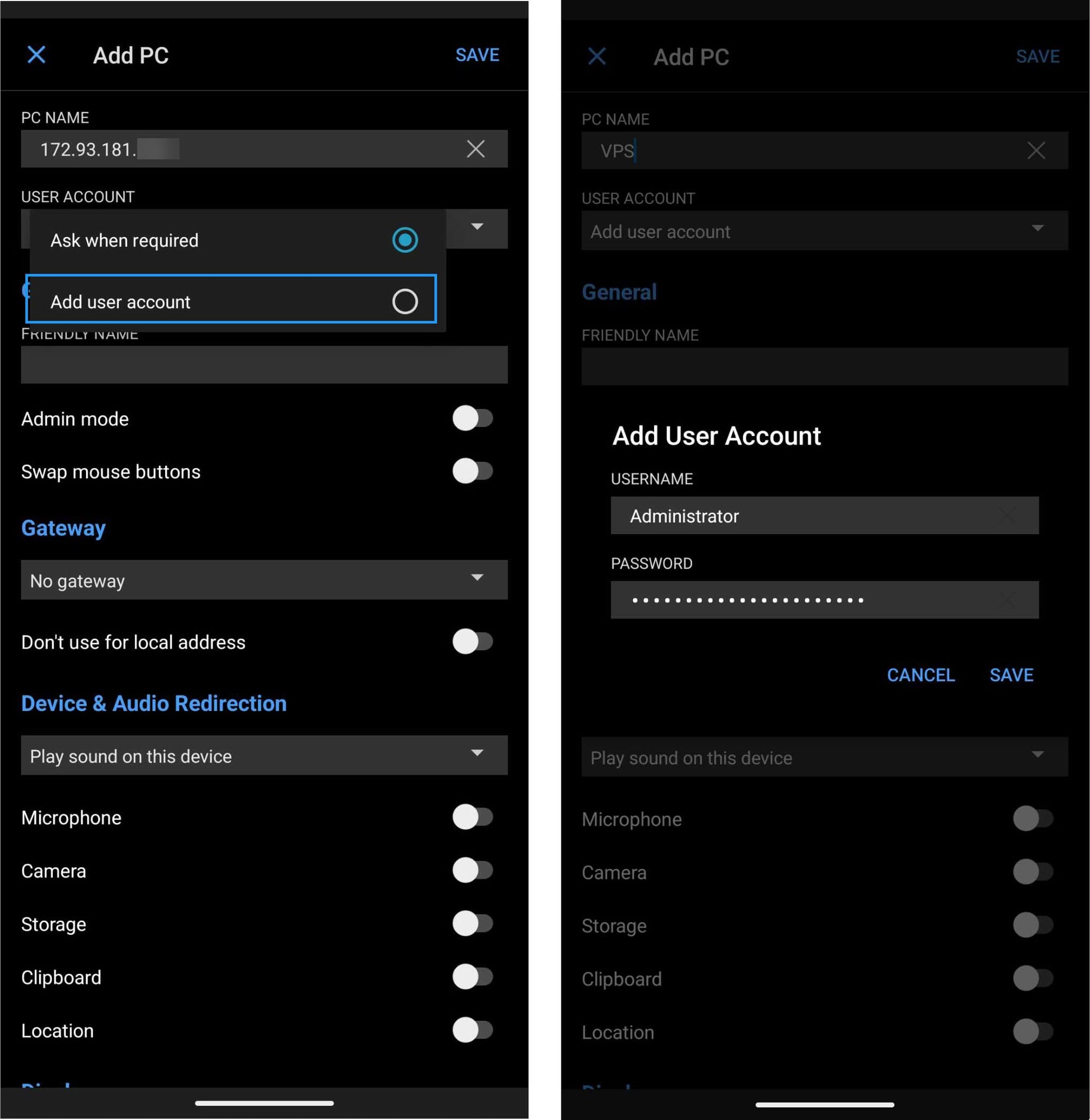
- Username:
Administrator - Password: your VPS password
Step 5. Tap Save, then tap the connection to connect.
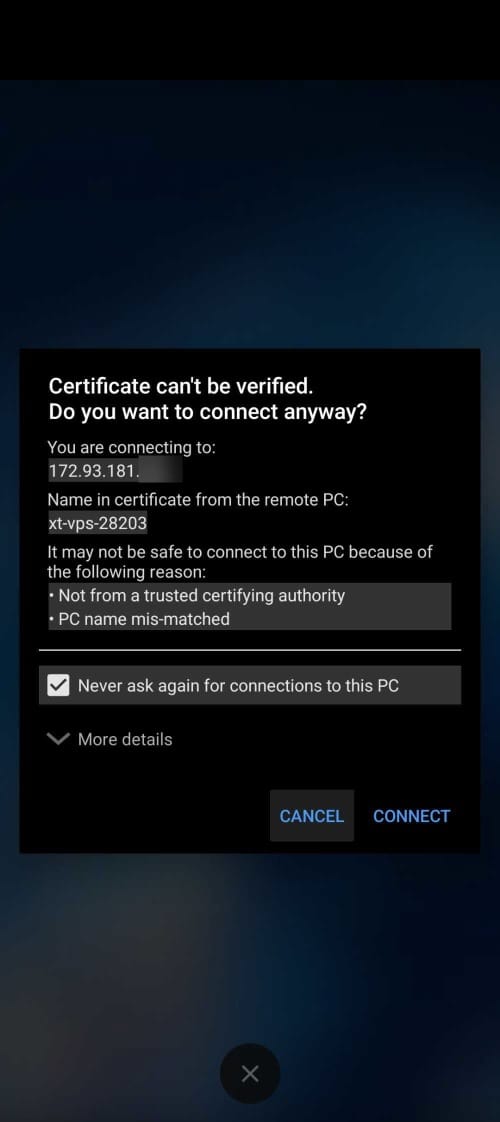
Step 6. Accept the certificate prompt if it appears on first launch.
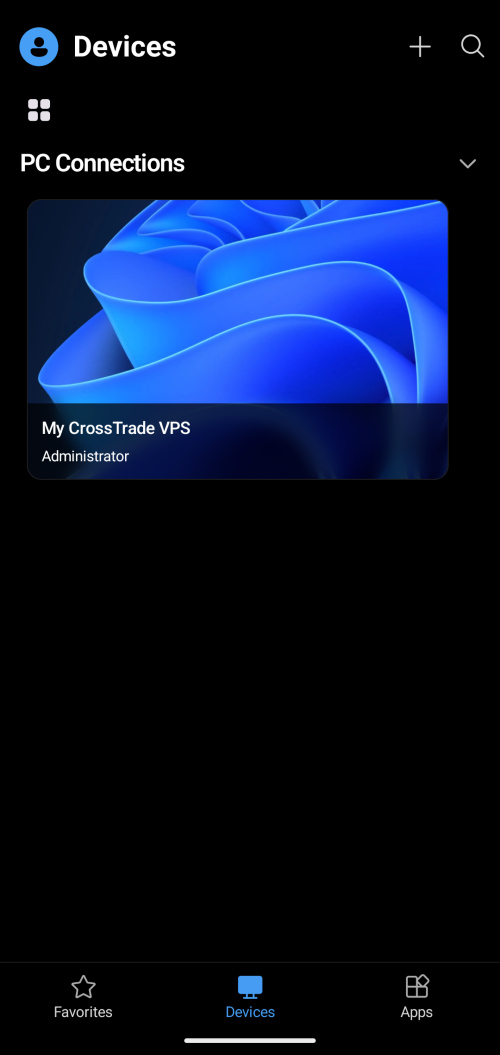
Your VPS desktop is now accessible from your Android device.
Tips for a Better Mobile Experience
Save your credentials. Both the Android and iOS apps allow you to save your username and password to the connection profile. Do this on first setup so you're not re-entering credentials every time.
Use a stable connection. RDP works over cellular data but performs best on Wi-Fi. If you notice lag or input delay, switching to a stronger network usually resolves it.
Enable landscape mode. Rotating your phone to landscape gives you significantly more screen real estate. On a tablet, the experience approaches a desktop-level view.
Use the keyboard toggle wisely. The on-screen keyboard can overlap parts of the desktop. Most actions on your VPS — like checking NinjaTrader status or reviewing the CrossTrade dashboard — can be done with touch alone, so you may not need it at all.
Don't close positions from mobile unless necessary. Mobile is great for monitoring and making quick adjustments, but for anything requiring precision input (like modifying webhook configurations), you're better off waiting until you're back at a desktop.
What Can You Do from Mobile?
Once connected, you have full access to your VPS just as if you were sitting at the machine. Common use cases for traders include:
- Checking that NinjaTrader is connected and strategies are running
- Reviewing the CrossTrade Account Manager to confirm position status
- Restarting NinjaTrader or the CrossTrade Add-On if something looks off
- Verifying webhook alerts are flowing correctly in the Alert History
- Checking bandwidth and uptime in the CrossTrade dashboard without needing a laptop
Troubleshooting
Can't connect? Double-check the IP address, username, and password from your Connection Details. A single character off will prevent the connection.
Certificate warning? This is normal on first connection. Tap Accept/Yes to proceed. It's not a security issue with your VPS — it just means your device hasn't seen this server before.
Slow or laggy session? Try switching from cellular to Wi-Fi, or reducing the display resolution in the connection settings within the Windows App.
Connection keeps dropping? Check that your VPS is showing "Running" in the CrossTrade dashboard. If the server has rebooted or is in a provisioning state, wait a few minutes and try again.
Full Connection Guide
For the complete desktop connection walkthrough including Windows PC and Mac instructions, visit the CrossTrade VPS Connection Guide.
Looking for a CrossTrade VPS? Our Chicago-based servers come pre-loaded with NinjaTrader 8 and the CrossTrade Add-On, ready to run the moment you connect. View VPS plans →