
The Complete Guide to NinjaTrader Commands
Every NinjaTrader ATI command and CrossTrade enhancement in one reference. PLACE, CLOSE, REVERSE, brackets, Strategy Lock, Strategy Sync, and more.


NinjaTrader's Automated Trading Interface (ATI) lets you control order placement, position management, and strategy execution through text commands. CrossTrade extends ATI by adding enhancements that aren't available natively — multi-account placement, bracket orders, strategy synchronization, position ownership tagging, and more.
This guide covers every command and enhancement available through CrossTrade. Each section includes the command syntax, required and optional parameters, and practical examples you can copy directly into a TradingView alert or test in the Webhook Trader on the Webhooks tab of your dashboard.
If you don't want to write commands by hand, the Automation Wizard builds them for you step by step. If you're brand new to CrossTrade, start with the Getting Started guide to get your first alert working before diving into the full command set.
This guide links frequently to the Help Docs, which serve as the canonical reference for every parameter and edge case.
Prerequisites
NinjaTrader 8 must be installed with the Automated Trading Interface enabled. Go to Tools > Options > Automated Trading Interface, check the box, and restart NinjaTrader. The CrossTrade XT Add-On must be installed and connected. Download the XT Add-On
A Note on Instruments
All examples in this guide use TradingView's continuous contract format (ES1!, NQ1!, MNQ1!). CrossTrade automatically converts these to the current NinjaTrader contract month, so you never have to update your alerts when contracts roll over. If you're sending webhooks from a source other than TradingView, use NinjaTrader's format instead (e.g., ES MAR26 or ES 03-26).
Commands
PLACE
The core command. Submits a new order to NinjaTrader with the specified account, instrument, action, quantity, order type, and time-in-force. Every enhancement in this guide (brackets, flatten first, strategy lock, etc.) is available on the PLACE command.
key=your-secret-key;
command=place;
account=sim101;
instrument=ES1!;
action=buy;
qty=1;
order_type=market;
tif=day;
If you send a BUY and then a SELL with the same quantity, the sell offsets the buy — it does not create a net short position. To close an existing position before entering a new one, use flatten_first=true or the FLATPLACE command.
FLATPLACE
A convenience command that combines CLOSEPOSITION and PLACE into a single instruction. Functionally identical to using flatten_first=true on a PLACE command. Use whichever you prefer.
key=your-secret-key;
command=flatplace;
account=sim101;
instrument=ES1!;
action=buy;
qty=1;
order_type=market;
tif=day;
CLOSEPOSITION
Closes any active position for the specified account and instrument. Cancels all working orders on that instrument in the process.
key=your-secret-key;
command=closeposition;
account=sim101;
instrument=ES1!;
CLOSESTRATEGY
Closes a specific ATM Strategy by its strategy ID. Use this when you need to shut down a particular strategy instance without affecting other positions on the account.
key=your-secret-key;
command=closestrategy;
strategy_id=your-strategy-id;
REVERSEPOSITION
Closes the current position and immediately places an order in the opposite direction. Field requirements are identical to PLACE.
key=your-secret-key;
command=reverseposition;
account=sim101;
instrument=ES1!;
action=sell;
qty=1;
order_type=market;
tif=day;
When reversing a position with an ATM strategy attached, make sure the action is the opposite of your existing position.
CrossTrade also developed the REVERSE command, which performs a true inversion of an existing position.
FLATTENEVERYTHING
The nuclear option. Cancels all active orders and flattens all positions across all accounts and all broker connections.
key=your-secret-key;
command=flatteneverything;
Use with caution. This affects every account connected to NinjaTrader, not just the one you specify.
Docs: FLATTENEVERYTHING command
FLATTEN
A more targeted version of FLATTENEVERYTHING. Provides different ways to flatten specific positions and accounts rather than nuking everything.
CANCEL
Cancels a specific order by its order ID. Optionally accepts a strategy ID.
key=your-secret-key;
command=cancel;
order_id=your-order-id;
strategy_id=your-strategy-id;
CANCELALLORDERS
Cancels all active orders across all accounts and broker connections. No parameters required beyond your key.
key=your-secret-key;
command=cancelallorders;
CANCELREPLACE
A combination of CANCEL and PLACE. Cancels an existing order and submits a new one in a single instruction.
CHANGE
Modifies the parameters of an existing order. Requires an order ID and accepts optional new values for quantity, limit price, and stop price.
key=your-secret-key;
command=change;
order_id=your-order-id;
qty=2;
limit_price=5500;
CANCELANDBRACKET
New in v1.12. Atomically replaces all working orders on an instrument with a fresh take-profit and/or stop-loss bracket. This solves the problem with the traditional two-step approach of sending CANCELALLORDERS followed by a PLACE for the new bracket — in the gap between those two commands, the position has no protective orders. CANCELANDBRACKET eliminates that gap by handling both steps internally.
key=your-secret-key;
command=cancelandbracket;
account=sim101;
instrument=ES1!;
action=buy;
qty=2;
take_profit=5620;
stop_loss=5580;
The action field defines the direction of the bracket orders, not a new entry. If you're long, set action=sell so the TP/SL orders are sell orders protecting your long position.
CANCELANDBRACKET automatically clamps the bracket quantity to your actual position size. If you send qty=5 but you're only holding 3 contracts, the bracket is placed for 3. It also includes a safety net: if a stop fills during the brief cancel window and the position goes flat, the add-on aborts the new bracket placement entirely to prevent accidental naked entries.
This command respects Strategy Lock — a different strategy cannot move stops on a position it doesn't own. It is not classified as an opening order, so trade windows and "closing only" mode will not block it.
Bracket values support ticks, percentages, points, and dollar amounts in addition to absolute prices:
key=your-secret-key;
command=cancelandbracket;
account=sim101;
instrument=ES1!;
action=buy;
qty=2;
take_profit=40 ticks;
stop_loss=20 ticks;
Docs: CANCELANDBRACKET command
Order Types
Market Orders
Executes immediately at the current market price.
key=your-secret-key;
command=place;
account=sim101;
instrument=ES1!;
action=buy;
qty=1;
order_type=market;
tif=day;
Limit Orders
Buys or sells at a specified price. If the limit price is already in the money (buy limit above current price, or sell limit below), the order executes immediately.
key=your-secret-key;
command=place;
account=sim101;
instrument=ES1!;
action=buy;
qty=1;
order_type=limit;
limit_price=5400;
tif=day;
Stop Market Orders
Places a market order when the specified stop price is reached.
key=your-secret-key;
command=place;
account=sim101;
instrument=ES1!;
action=buy;
qty=1;
order_type=stopmarket;
stop_price=5600;
tif=day;
Use stop_price, not limit_price, for stop orders.
Stop Limit Orders
Places a limit order when the specified stop price is reached.
key=your-secret-key;
command=place;
account=sim101;
instrument=ES1!;
action=buy;
qty=1;
order_type=stoplimit;
stop_price=5600;
limit_price=5605;
tif=day;
ATM Strategies
NinjaTrader's ATM (Advanced Trade Management) strategies let you attach predefined bracket orders — stop loss, take profit, trailing stops, breakeven stops — to an entry order. CrossTrade supports triggering ATM strategies from webhooks so NinjaTrader handles all exit management locally.
To initiate a new ATM strategy with your entry order, use the atm_strategy parameter. The name must match exactly what's saved in NinjaTrader (case-sensitive, space-sensitive).
key=your-secret-key;
command=place;
account=sim101;
instrument=ES1!;
action=buy;
qty=1;
order_type=market;
tif=day;
atm_strategy=MyBracketTemplate;
When using an ATM strategy, be aware that sending a SELL after a BUY will offset the position but will not cancel the ATM's stop and target orders. Those become orphaned. Send a CLOSEPOSITION or REVERSEPOSITION before the next directional trade to avoid this, or use flatten_first=true to handle it automatically.
The quantity in your CrossTrade alert supersedes the default ATM quantity configured in NinjaTrader.
To attach an order to an already-active ATM strategy (for scaling into a position), use strategy_id with the active strategy's ID instead of atm_strategy.
CrossTrade Enhancements
These are parameters and capabilities that CrossTrade adds on top of NinjaTrader's native ATI. They're processed server-side before the instruction reaches your NinjaTrader instance.
Multi-Account Placement
Send a single alert to multiple NinjaTrader accounts simultaneously. Separate account names with commas. CrossTrade generates an identical order for each account.
key=your-secret-key;
command=place;
account=sim101,Eval-ABC,Funded-XYZ;
instrument=ES1!;
action=buy;
qty=1;
order_type=market;
tif=day;
There's no limit on the number of accounts. All account types are supported (sim, evaluation, funded, live). For a full comparison of multi-account placement vs. the Trade Copier, see How to Send One TradingView Alert to Multiple NinjaTrader Accounts.
Flatten First
Closes any existing position in the same instrument before placing the new order. This turns a single PLACE command into a close-then-open sequence, eliminating the need for separate close and entry alerts.
flatten_first=true;
Add this to any PLACE command. If the account is already flat, it's ignored and the order proceeds normally. Alternatively, use the FLATPLACE command which does the same thing.
Docs: Flatten First · Blog: Flatten First deep-dive
Take Profit and Stop Loss
Add bracket orders to any PLACE command by including take_profit and stop_loss values. CrossTrade creates the opposing orders automatically — a buy entry generates sell TP/SL orders and vice versa. When both are present, they're linked as an OCO (One-Cancels-the-Other) bracket.
key=your-secret-key;
command=place;
account=sim101;
instrument=ES1!;
action=buy;
qty=1;
order_type=market;
tif=day;
take_profit=5600;
stop_loss=5400;
Values can be absolute prices, ticks, percentages, points, or dollar amounts:
take_profit=40 ticks;
stop_loss=20 ticks;
take_profit=1.5%;
stop_loss=0.75%;
Wait-for-fill behavior (v1.12+): When you use a limit or stop entry order with brackets, CrossTrade now waits for the entry to fill before placing the TP/SL orders. Market orders are unaffected — brackets are submitted immediately alongside the entry since market orders fill instantly. This prevents orphaned bracket orders protecting positions that don't exist yet.
Use take_profit and stop_loss together for an OCO bracket, or use either one solo. They're also compatible with append_atm=true to group the bracket under a named ATM strategy for management inside NinjaTrader.
Docs: Bracket Orders · Blog: Bracket Orders deep-dive
Strategy Lock
New in v1.12. Tags positions with a strategy identity so that multiple automations running on the same account cannot interfere with each other. When you include a strategy_tag in your command, CrossTrade only allows that tag to interact with positions it opened. A different strategy's signal cannot close, reverse, or modify a position owned by another tag.
key=your-secret-key;
command=place;
account=sim101;
instrument=ES1!;
action=buy;
qty=1;
order_type=market;
tif=day;
strategy_tag=momentum;
This solves the problem every multi-strategy trader has hit: Strategy A opens a long, then Strategy B fires a sell signal that accidentally closes it. With strategy tagging, each automation owns its positions independently.
A position can only be opened under a tag if the account is flat for that instrument (or flat for that tag). Once claimed, only commands with the matching strategy_tag can touch it. Strategy Lock works with PLACE, CLOSEPOSITION, REVERSEPOSITION, CANCELANDBRACKET, and all other commands.
Docs: Strategy Lock · Blog: v1.12 Release
Strategy Sync
Prevents state drift between your TradingView strategy and your NinjaTrader position. When sync_strategy=true is included in a PLACE command, CrossTrade compares the strategy's expected state (provided by you) with the actual position state in NinjaTrader before executing.
This catches scenarios where NinjaTrader and your strategy disagree about whether you're long, short, or flat — due to manual intervention, connection drops, or partial fills. Without sync, a "go long" signal could be sent when you're already long, doubling your position unintentionally.
Strategy Sync requires additional parameters (market_position, prev_market_position) and offers configurable behavior when a mismatch is detected (wait, flatten, or force). The full walkthrough is in the docs — this is an advanced feature worth reading thoroughly before deploying.
Docs: Strategy Synchronization · Blog: Strategy Sync
Require Market Position
Blocks a signal from executing unless the account's actual market position matches what you specify. Available on any command that has both an account and instrument field.
require_market_position=flat;
Accepts flat, long, short, or comma-separated combinations (flat,long means "flat or long"). This is a simple guard against signals executing in the wrong context.
Max Positions
Only allows an opening order if it won't exceed the specified maximum number of positions on the account.
Rate Limiting
Prevents too many signals of the same type from executing in a short window. Provide a rate_limit and an id to group related signals.
rate_limit=1;
id=mystrategy;
By default, the number is requests per minute. For custom windows, use the format requests/seconds:
rate_limit=1/3600;
id=mystrategy;
That allows one signal per hour (3,600 seconds) for the mystrategy group. Useful for blocking duplicate TradingView alerts or limiting entry frequency for day trading strategies.
Docs: Rate Limiting · Blog: Rate Limiting deep-dive
Trading Window
Sets an alert-level trading window with start time, end time, and optional closing-only-after time. Works in addition to or instead of the global trading window on the Master Controls panel.
Bypass Trade Windows
Overrides and bypasses all global, alert-level, and account-level trade windows for a specific signal. Use when a signal must execute regardless of window restrictions.
Limit Order Timeouts
Cancels an unfilled limit order after a specified number of minutes.
Delay Timer
Delays execution of a signal by a specified number of seconds (up to 300). Happens server-side after the alert is received. Useful for avoiding race conditions when multiple signals fire simultaneously.
Alert Commenting
Add notes inside your alert message using // at the beginning of a line. Comments are stripped before processing and don't affect execution.
// This is my momentum entry strategy
// Last updated March 2026
key=your-secret-key;
command=place;
account=sim101;
instrument=ES1!;
action=buy;
qty=1;
order_type=market;
tif=day;
Useful for annotating commands or allowing multiple tools to parse the same alert message.
Kill Switch
Turn the Master Kill Switch on or off directly through a webhook signal. This lets you halt all signal processing remotely without logging into the dashboard.
Notes
Attach a note to any alert that will appear in the Activity Log and Alert History. Useful for labeling signals when reviewing execution logs.
Putting It All Together
Here's what a fully-loaded alert message looks like — a single TradingView webhook that flattens any existing position, places a buy order with bracket protection, tags it for strategy ownership, rate limits to prevent duplicates, and sends to three accounts simultaneously:
// Momentum strategy entry
key=your-secret-key;
command=place;
account=Eval-001,Eval-002,Funded-001;
instrument=ES1!;
action=buy;
qty=1;
order_type=market;
tif=day;
flatten_first=true;
take_profit=40 ticks;
stop_loss=20 ticks;
strategy_tag=momentum;
rate_limit=1;
id=momentum-entry;
That single alert generates three separate orders (one per account), each with a flattened-before-entry guarantee, an OCO bracket with tick-based TP/SL, position ownership under the "momentum" tag, and duplicate protection. One TradingView alert. One webhook. Full automation.
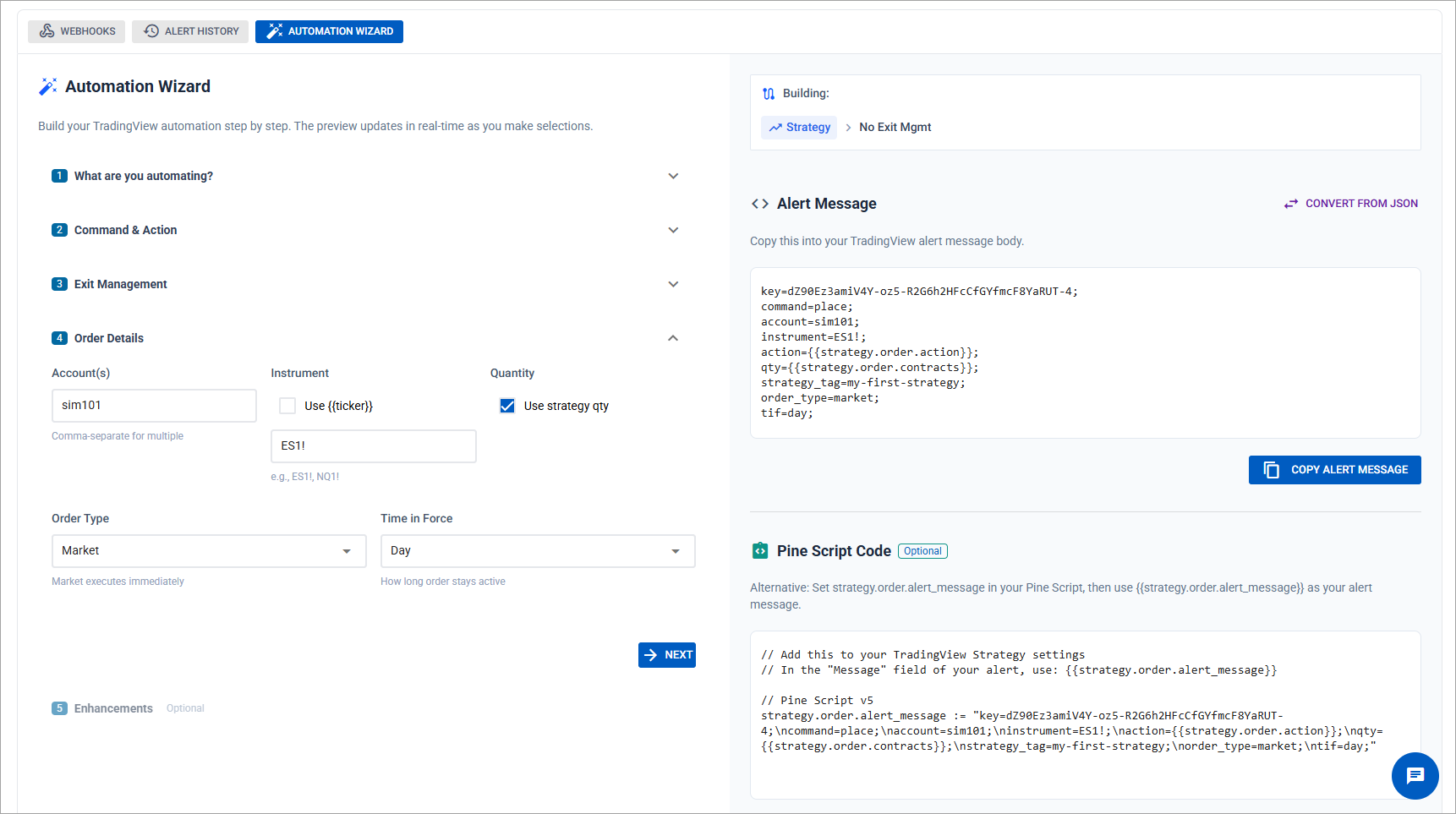
You can build this exact command in under a minute using the Automation Wizard, test it instantly with the Webhook Trader, and save it to your Command Library for reuse.
Command Formatting Reference
All commands follow the parameter=value; format. Each parameter goes on its own line for readability, but line breaks are not required — everything can be on a single line separated by semicolons.
Letter case doesn't matter for parameter names (ORDER_TYPE and order_type are identical). However, values like account names and ATM strategy names are case-sensitive and must match NinjaTrader exactly.
For the full parameter reference table including all valid values for each field, see the Commands documentation.
New to CrossTrade? Start your free 7-day trial — full access, unlimited alerts, no credit card. Test every command in this guide on a sim account and see the results in real time.